
Appearance
Add a Device
WARNING
- You must have the appropriate permissions to add a device to your company.
- Support for the WebAccess/DMP platform is limited for the S1 Router version.
Note:
A device can connect to the WebAccess/DMP instance only if the WebAccess/DMP Client Router App is installed on the device. This application is typically pre-installed during manufacturing, so no manual installation is required in most cases. In most scenarios, simply adding the device to WebAccess/DMP is sufficient for it to connect.
If needed, see Install or Upgrade the WebAccess/DMP Client App.
- User Requirements:
You must have the appropriate permissions to add devices. See Permissions & Roles.
Rules
- Both newly manufactured and previously removed devices can be added.
- A device can belong to only one company at a time.
- A company can remove a device it previously added.
- A device must be added to a company before it can be managed or monitored.
- A Free company can add up to five unique devices.
WARNING
Important: Once five devices have been successfully added, no additional devices can be added, even if some are later removed. The limit is based on the total number of successful Add Device operations, not on the current number of devices.
Steps to Add a Device
Obtaining Device Information
You can obtain the required device information in one of the following ways:
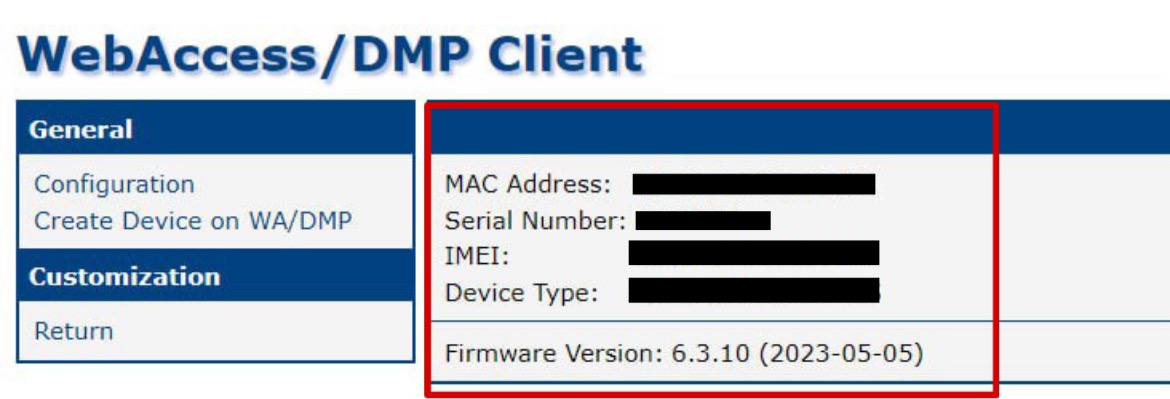
From the WebAccess/DMP Client App on the router:
- Sign in to the router’s web interface.
- Navigate to Router Apps (in the Customization section).
- Open the WebAccess/DMP Client App.
- Click Create Device on WA/DMP.
- Copy the displayed device information.
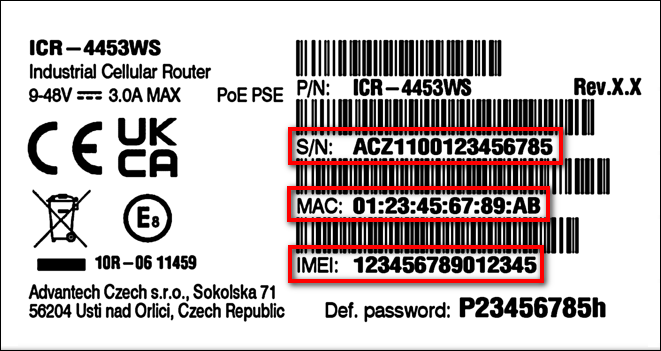
From the printed device label:
Adding a Device to Your Company
Open the Dashboard
Navigate to Dashboard from the side menu.Start the Add Device Wizard
Click the Add Devices button above the device table.
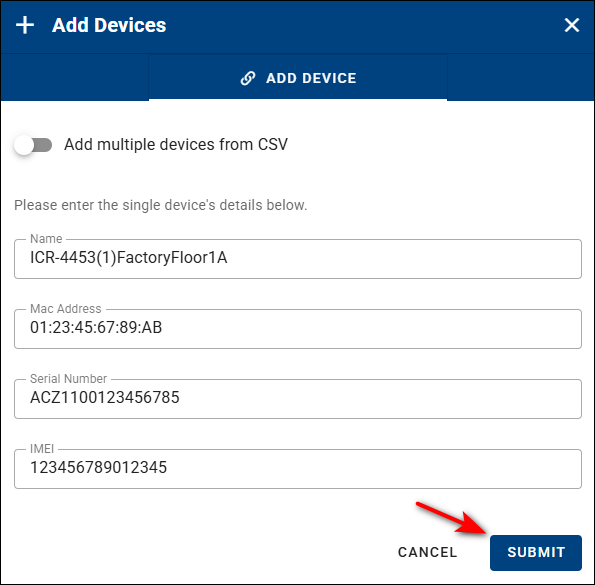
Fill in the Add Device Form
Name:
Optional, human-readable name for easier identification.MAC Address:
Enter the MAC address of the ETH0 interface exactly as shown on the device label (format:00:0A:14:aa:bb:cc).
Required.Serial Number:
Enter the serial number exactly as printed on the device label.
Required.IMEI:
Enter the IMEI number if the device has one.
Required only for devices that provide an IMEI.
Add Multiple Devices (Optional)
Enable Add multiple devices from CSV to import multiple devices at once.
- Prepare a CSV file using the format shown in the expandable help.
- For large shipments, you may request a prepared device list from support.
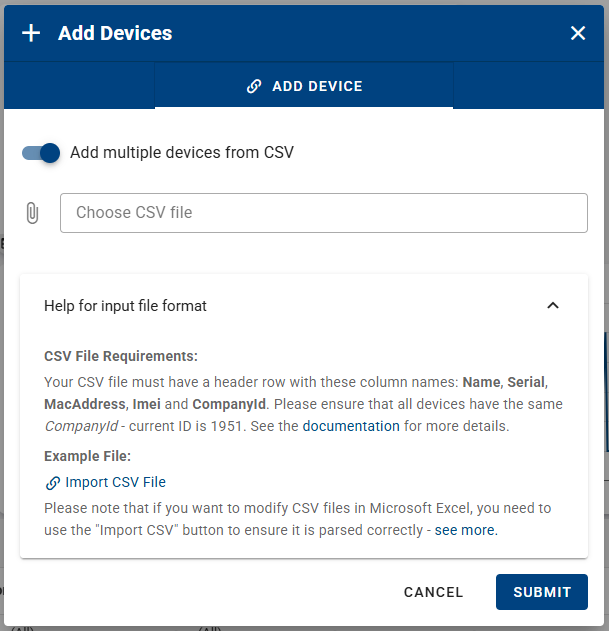
You can download a sample file here:
CSV Example FileSubmit
Click Submit to complete the process.
After successful addition, the devices will appear in the Device List for your company.
