Appearance
Move Device Between Companies
The Move Device feature transfers a device from one company to another.
Authorization and Requirements
To prevent unauthorized transfers, the following conditions must be met:
- Dual membership — You must be a member of both the source and the destination company.
- Source permission — You must have the Remove Devices permission in the source company.
- Destination permission — You must have the Add Devices permission in the destination company.
Data Transfer Options
When moving a device, you must choose whether its data is transferred to the destination company.
Full Data Transfer
The device is moved together with the following information:
- Time-series data — Uptime statistics and reported metrics.
- Identity — Device name and metadata.
- Configuration — The desired configuration, so the device keeps its intended state after the move.
Move Device Only
The device appears in the destination company as a new, clean entity. Historical metrics and configuration history remain associated with the original company.
Moving a Device
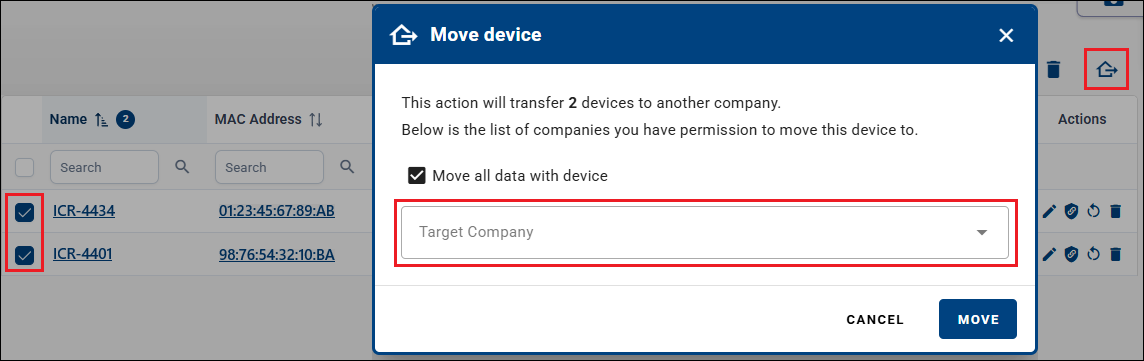
Devices can be moved either individually or in bulk.
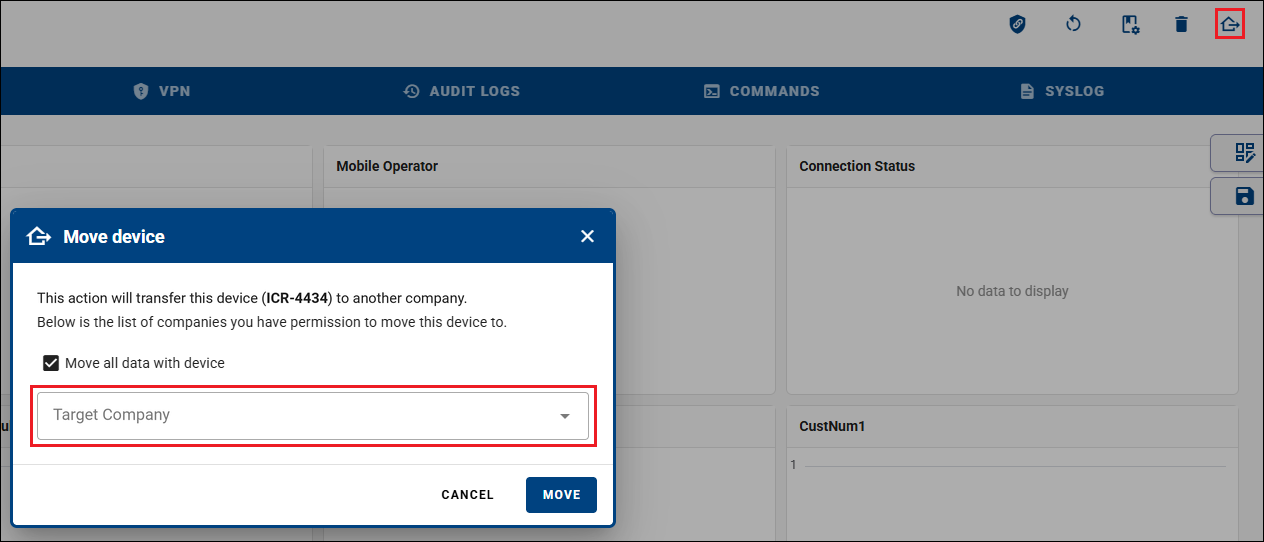
Single Device
- Open the Device Detail page of the device you want to move.
- Click the Move Device action button.
- Select the Destination Company from the dropdown list.
- Enable or disable the Transfer Data option as required.
- Confirm the operation.
Multiple Devices
- Open the Dashboard.
- Select multiple devices using the checkboxes.
- Click Move Selected Devices above the device table.
- Select the destination company and the Transfer Data option.
- Confirm the operation.