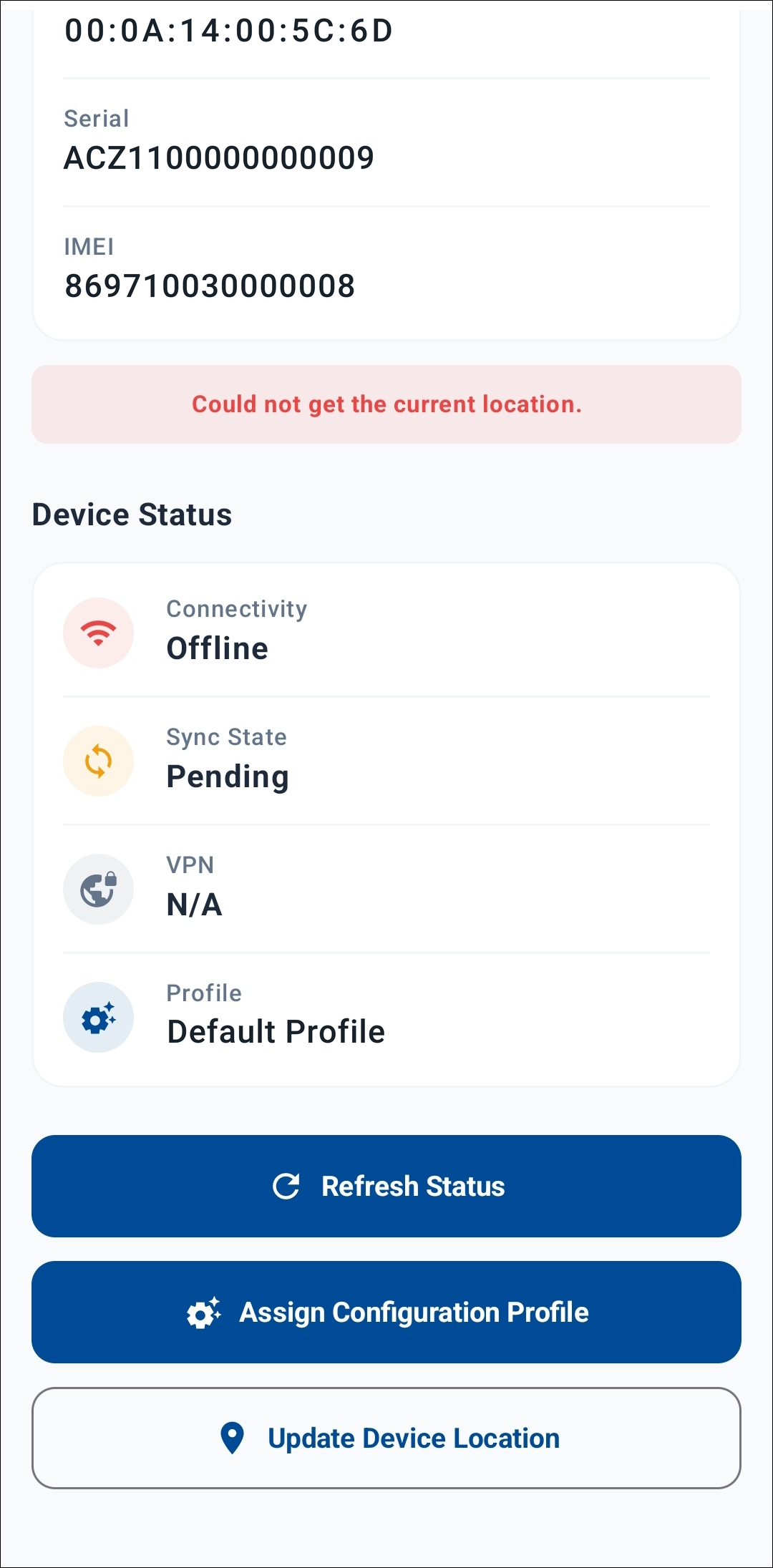
Appearance
DMP Companion App
The DMP Companion App is an Android application for field technicians. Using a phone's camera, a technician scans a device's label or QR code; the app reads the device details and lets the device be managed on site — for example, renaming it or assigning a configuration profile.
Requirements
- Sign in with your WebAccess/DMP user account.
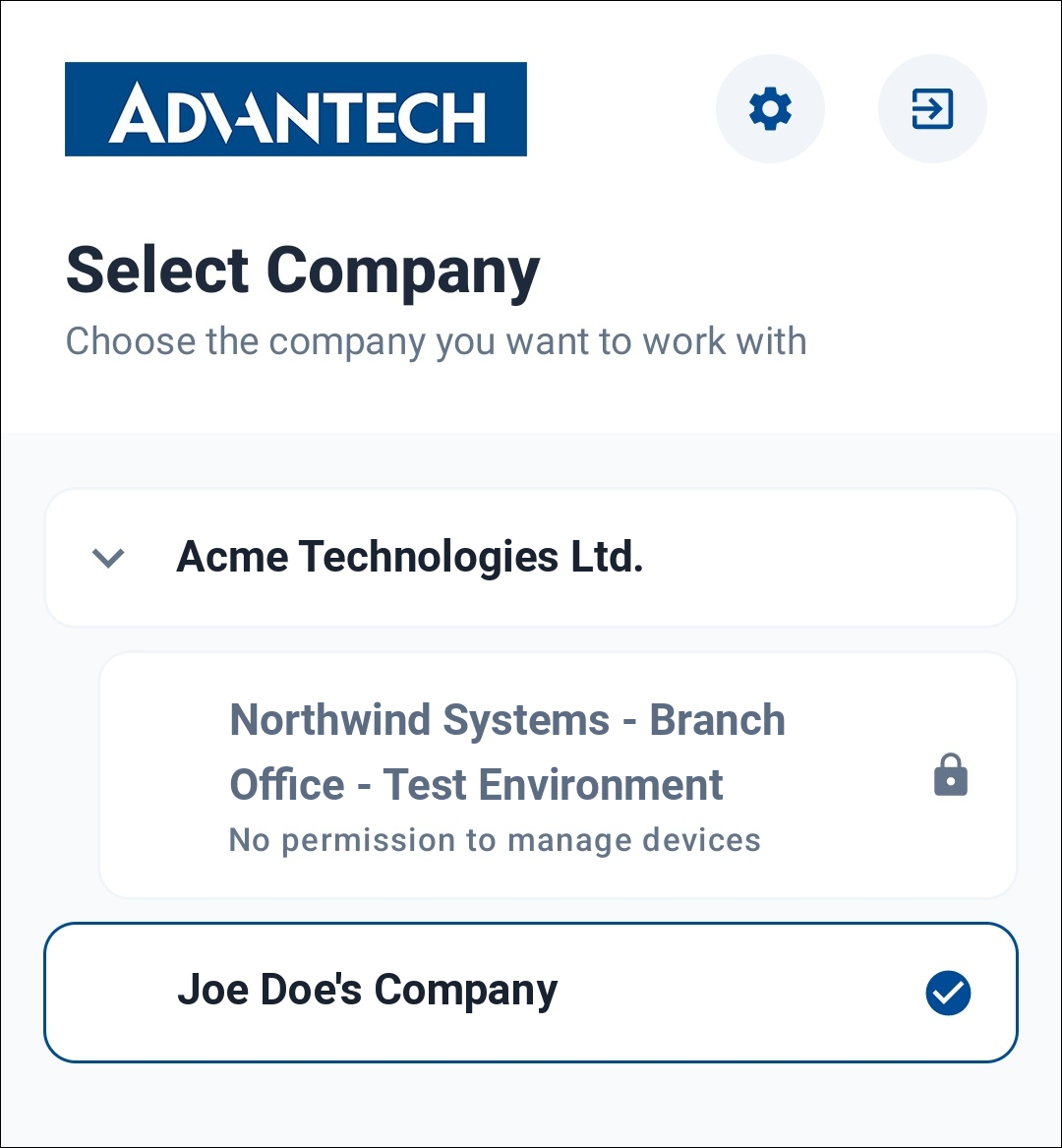
- You need permission to manage devices in the company you select. Companies where you lack this permission are shown as locked.
- The scanned device must be available in WebAccess/DMP within the selected company.
Settings
Open Settings from the gear icon in the top-right corner:
- Domain — the WebAccess/DMP instance the app connects to. The default is
wadmp3.com(the cloud instance). For an On-Premises instance, change this to your On-Premises domain. - Location Services — enables or disables the app's access to the phone's GPS location.
Tap Apply & Save to store the settings on the phone.
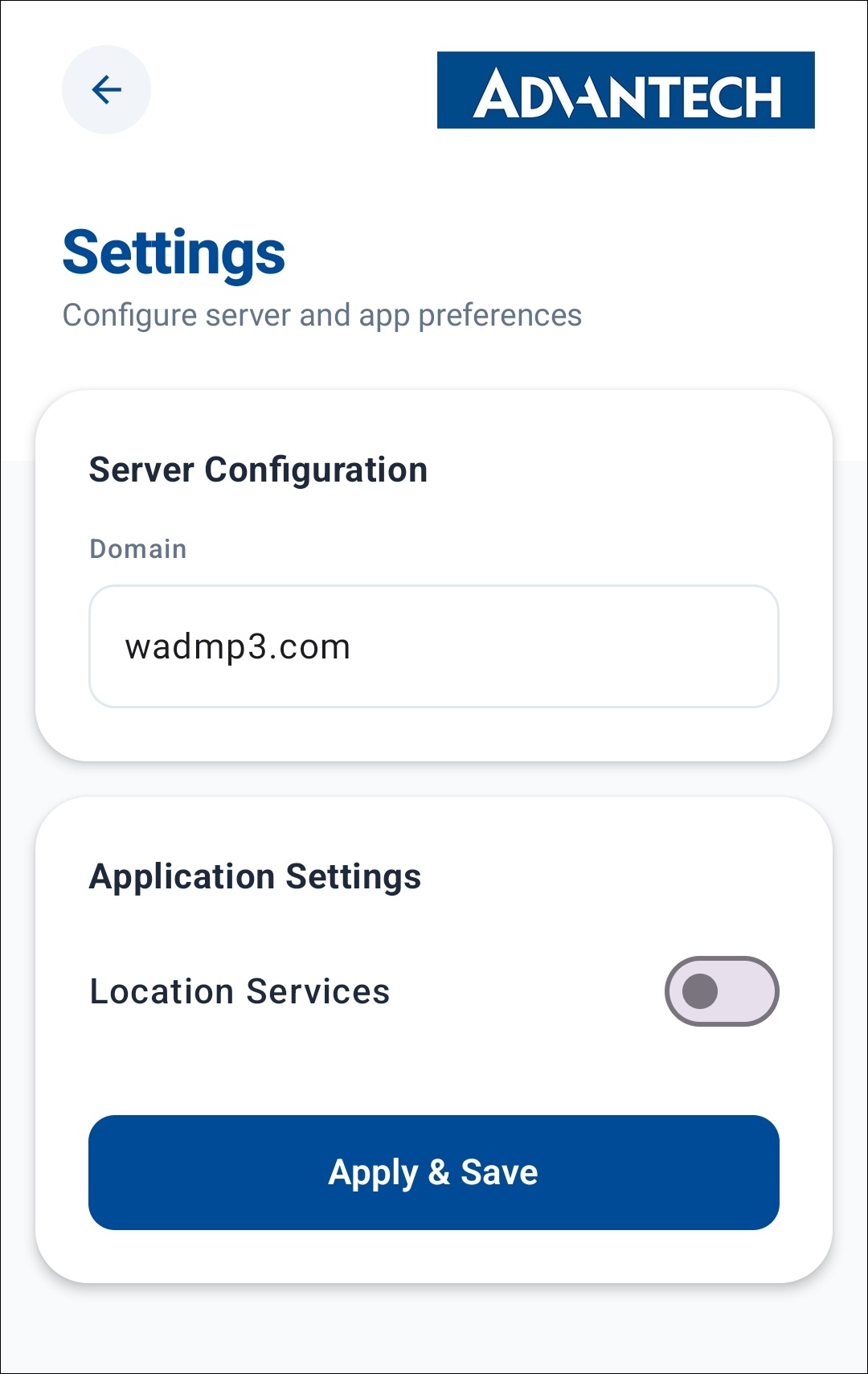
On-Premises
A custom CA certificate can be imported for secure communication with an On-Premises instance. This option applies only to On-Premises domains and is not available for the cloud domain.
Signing In
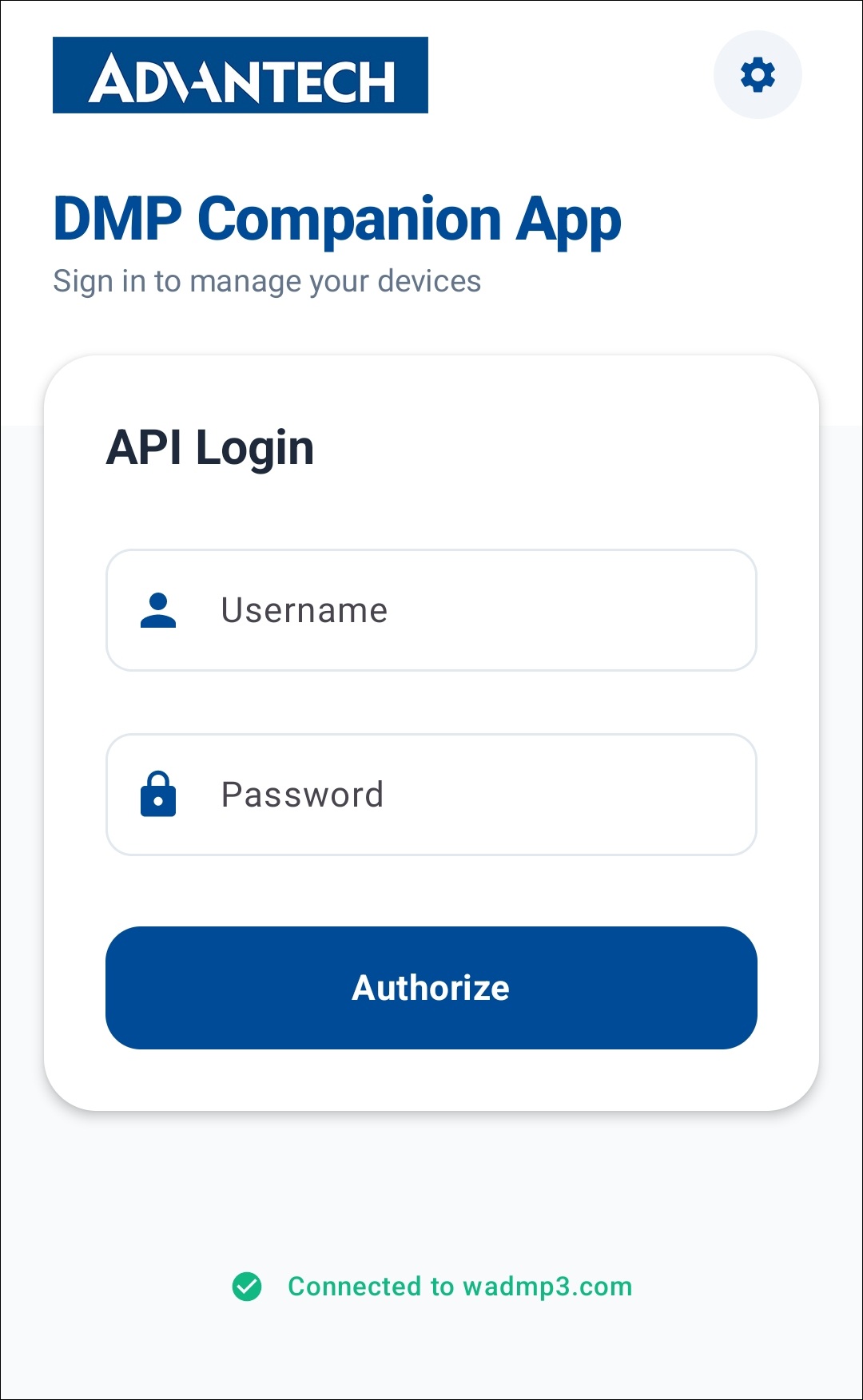
On the API Login screen, enter the Username and Password of your WebAccess/DMP account and tap Authorize. The connected domain is shown at the bottom (for example, Connected to wadmp3.com).
After signing in, choose the company you want to work with on the Select Company screen. Companies where you do not have permission to manage devices are shown as locked.
Scanning a Device
Choose how to read the device's label or QR code:
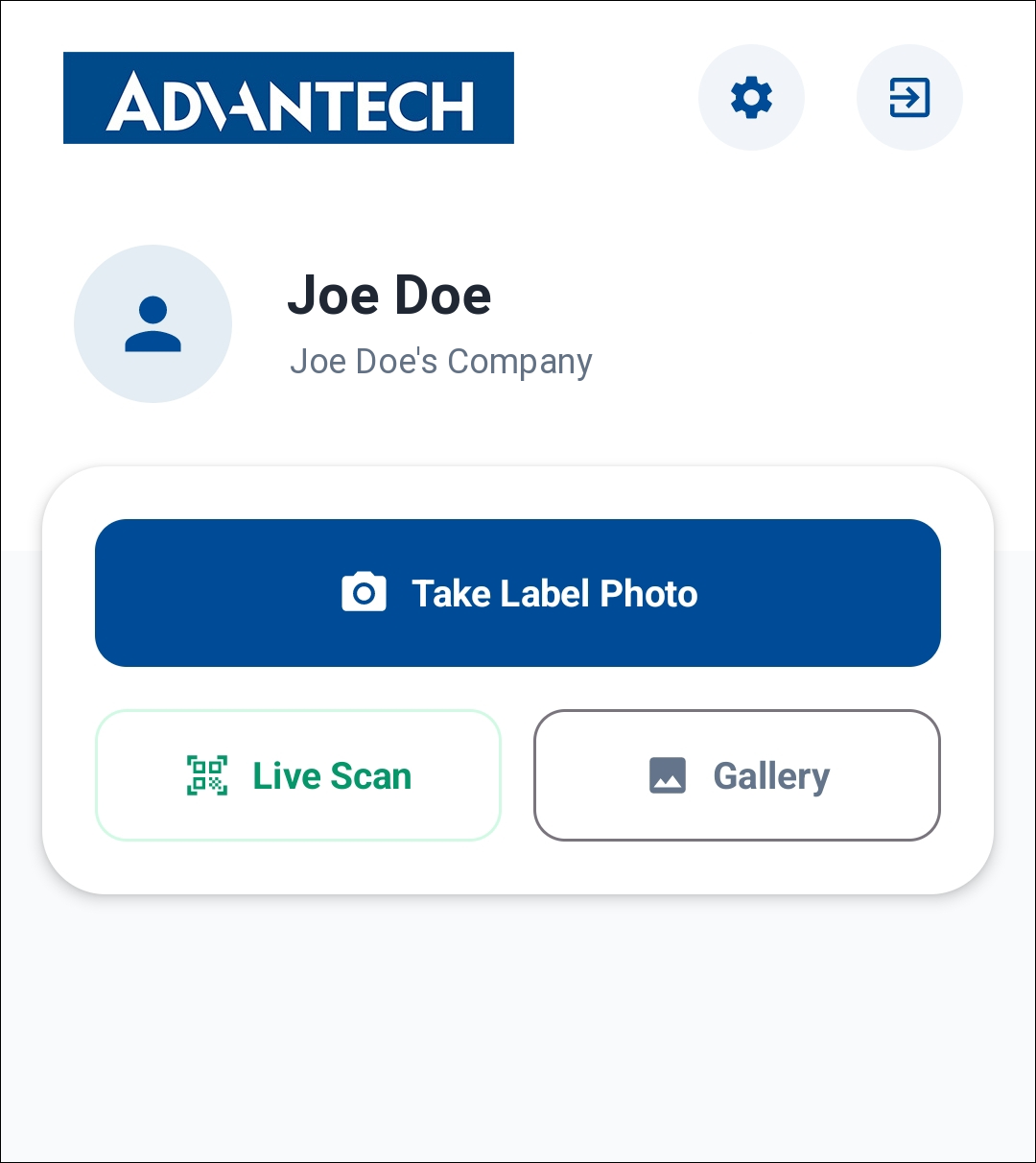
- Take Label Photo — take a photo of the label with the camera.
- Live Scan — scan the device's QR code live with the camera.
- Gallery — select an existing photo of the label from the phone's gallery.
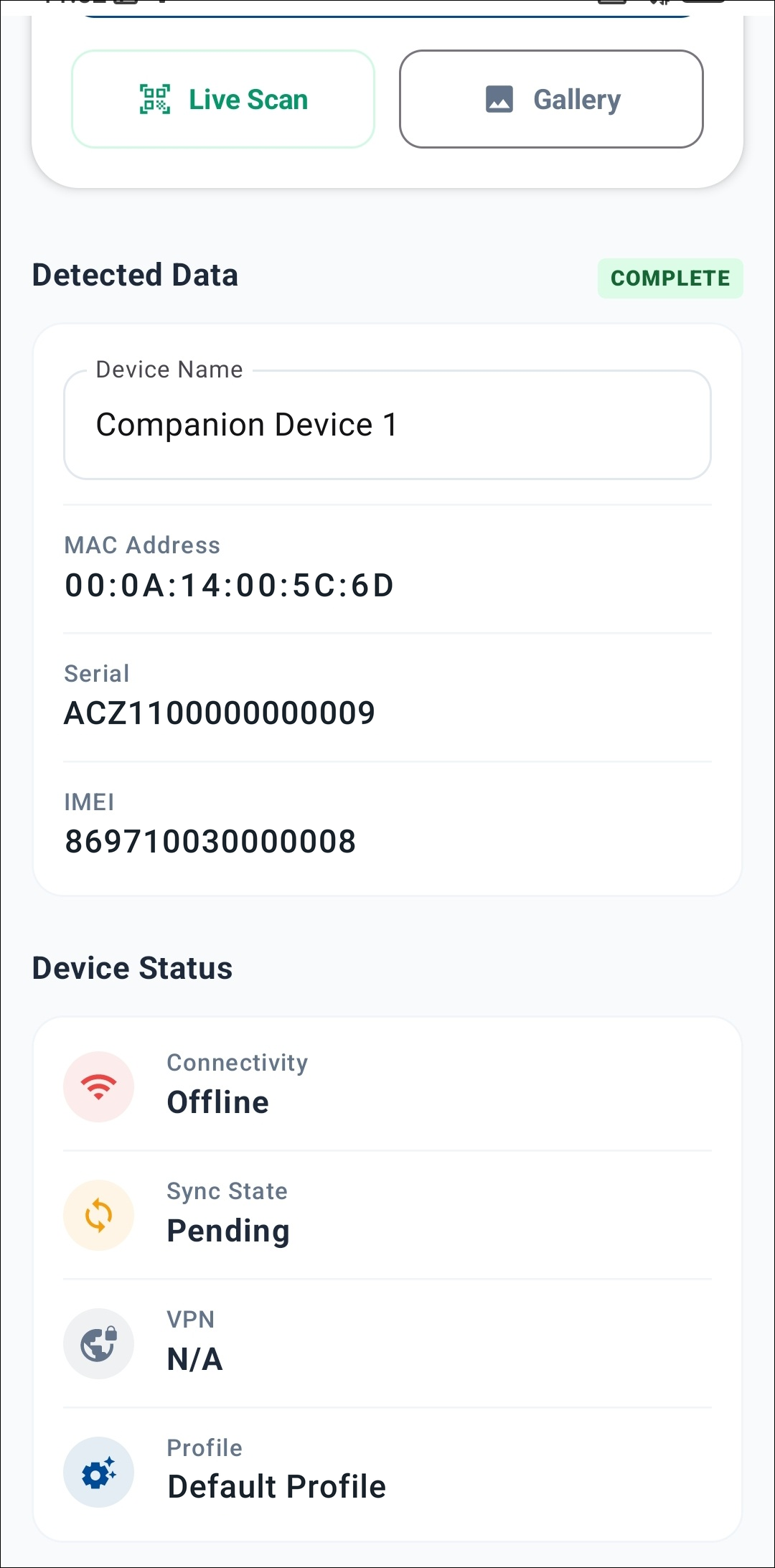
The app reads the device information and shows it under Detected Data — the Device Name, MAC Address, Serial, and IMEI. A Complete badge indicates that all required information was read.
Managing the Device
Changing the Name
Edit the Device Name field in the Detected Data section to rename the device.
Assigning a Configuration Profile
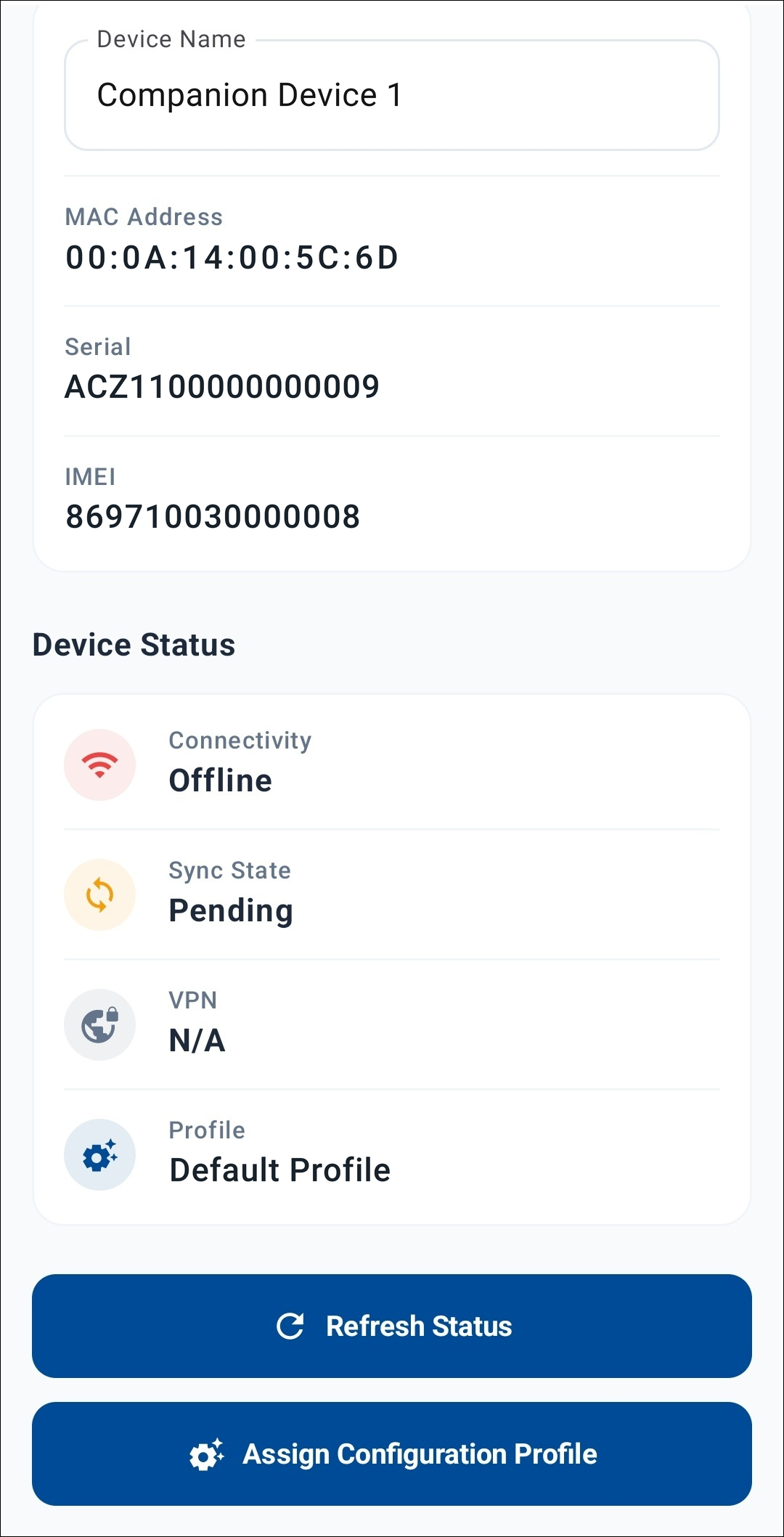
Tap Assign Configuration Profile to open the Select Profile list, which shows the configuration profiles available in the company. Select a profile to assign it, or choose Unassigned to remove the currently assigned profile.
Device Status
The Device Status section shows the device's current Connectivity, Sync State, VPN, and assigned Profile. Tap Refresh Status to reload the latest status.
Updating the Device Location
When Location Services is enabled in Settings, an Update Device Location button appears below the device actions. Tap it to read the phone's current GPS location and set it as the device's location. If the location cannot be read, the app shows Could not get the current location.