
Appearance
Creating New Alerts
Create Notification Endpoints
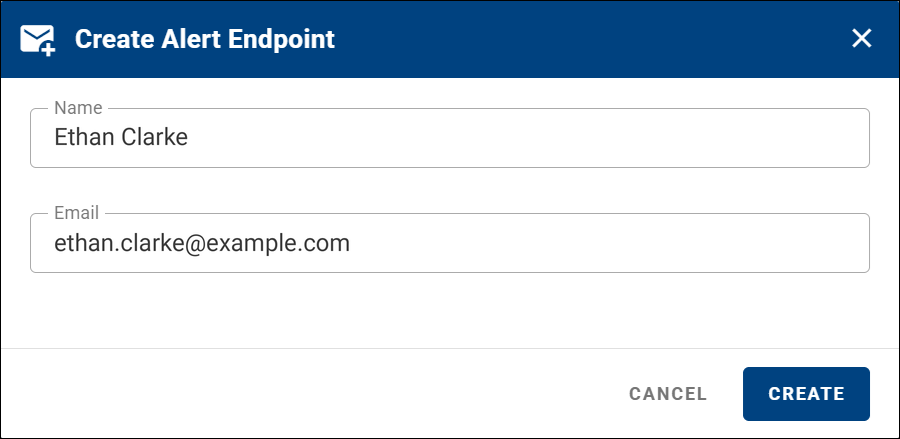
Endpoints define where alert notifications are sent (for example, email). To add one, go to Alerts → Endpoints and click + CREATE.
Provide a Name and Email address for the endpoint.
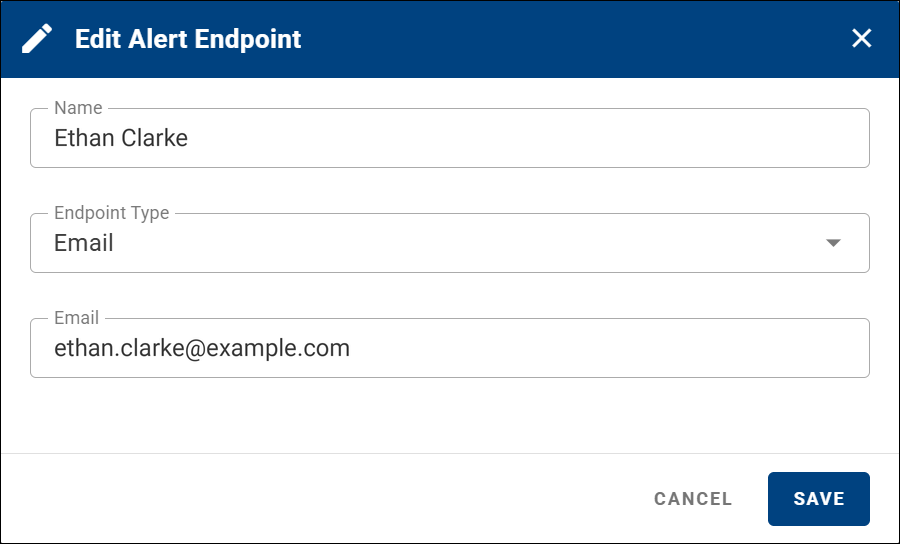
To edit an existing endpoint, click the pencil icon in the right column of the Endpoints table.
Create Alert Rules
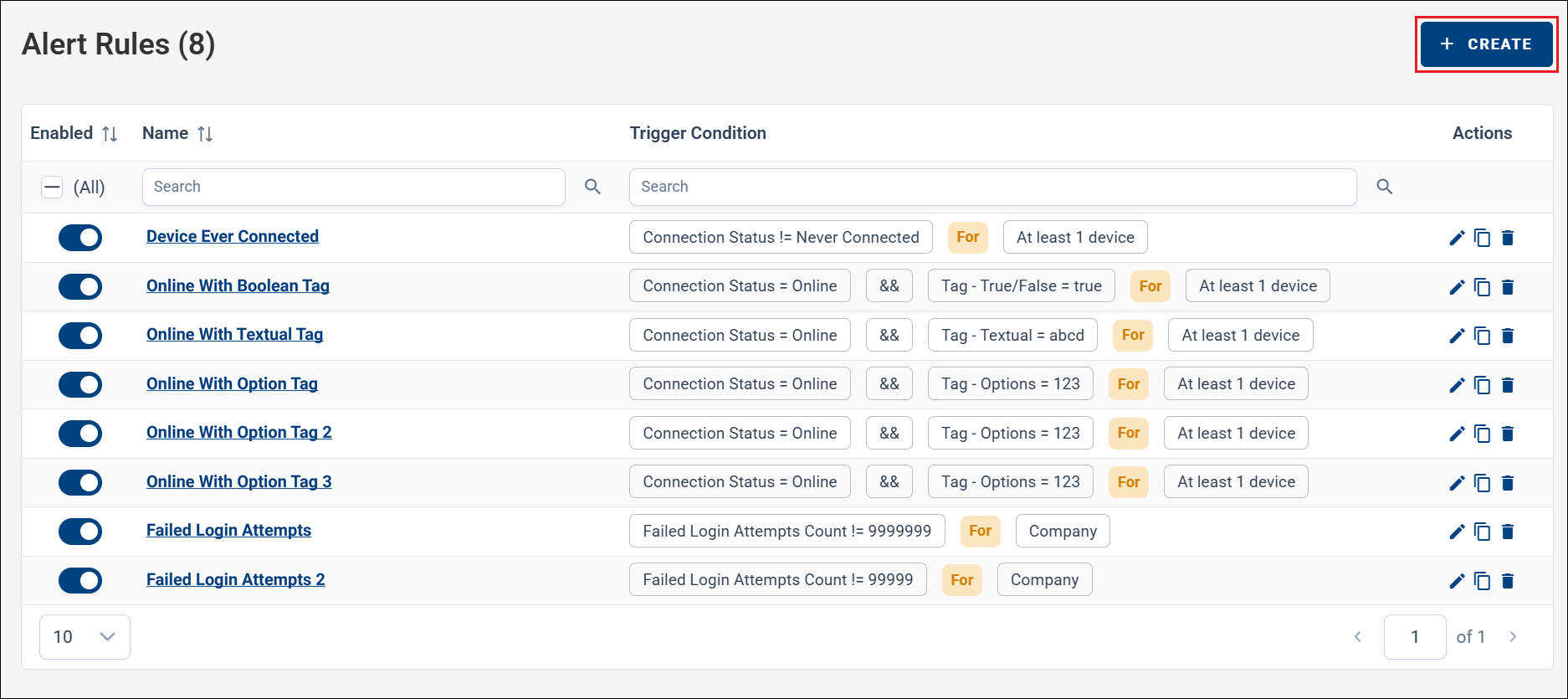
Create a new alert rule by clicking the + CREATE icon in the Alerts → Rules section.
1. Select Target Type
When creating a rule, choose one of the following Target Types:
- Company — Applies the rule to the current company itself (company-level events, such as failed login attempts or user count), not to its devices.
- Single Device — Applies the rule to one specific device.
- Devices — Applies the rule to all devices or only devices with a selected tag.
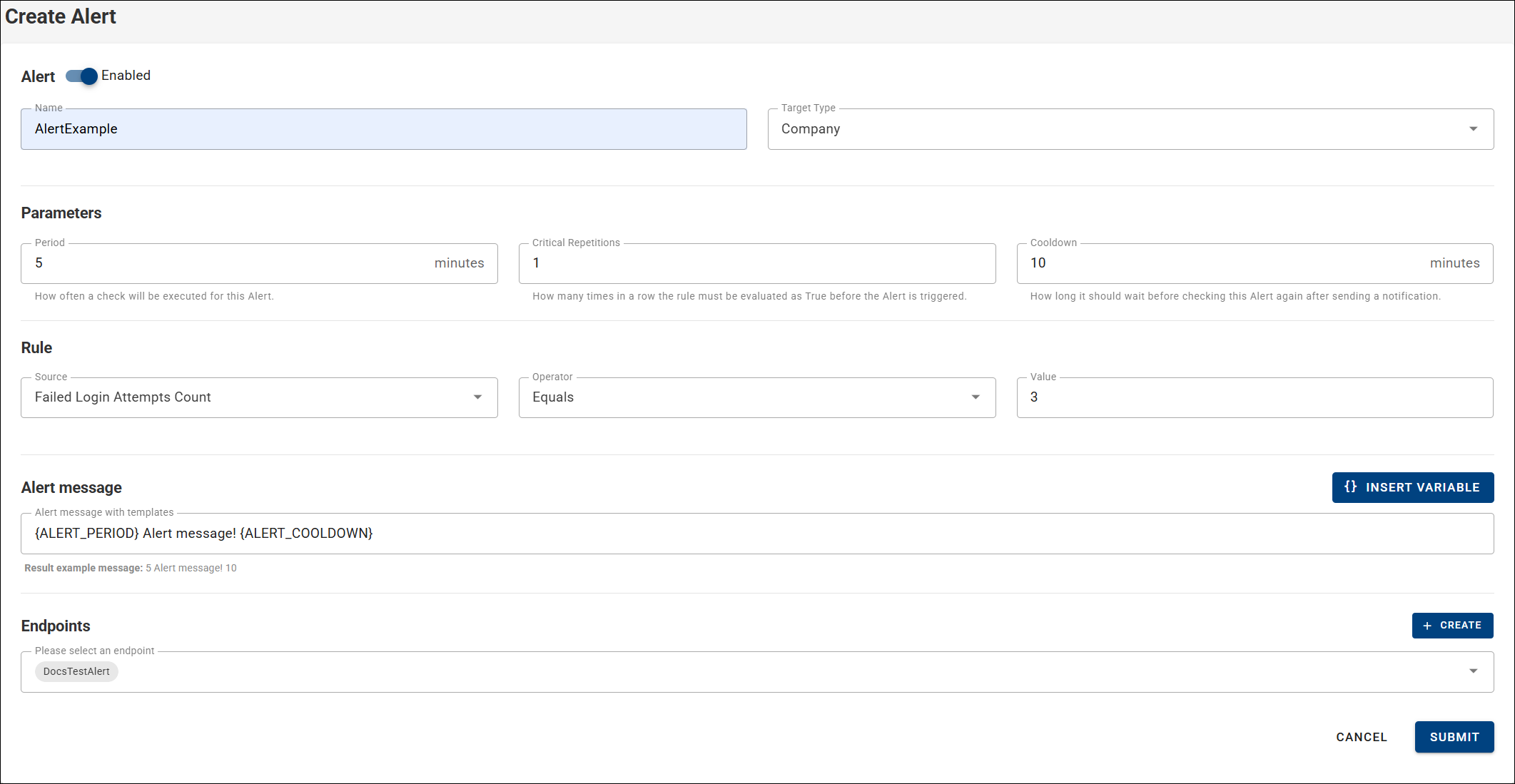
2. Define Rule Parameters
Configure the rule parameters, including the cooldown period. The cooldown starts immediately after an alert is triggered. Once the cooldown expires, rule evaluation resumes based on the configured interval.
2.1 Company Target
For the Company target type, you can choose from:
- Failed Login Attempts
- Users Count
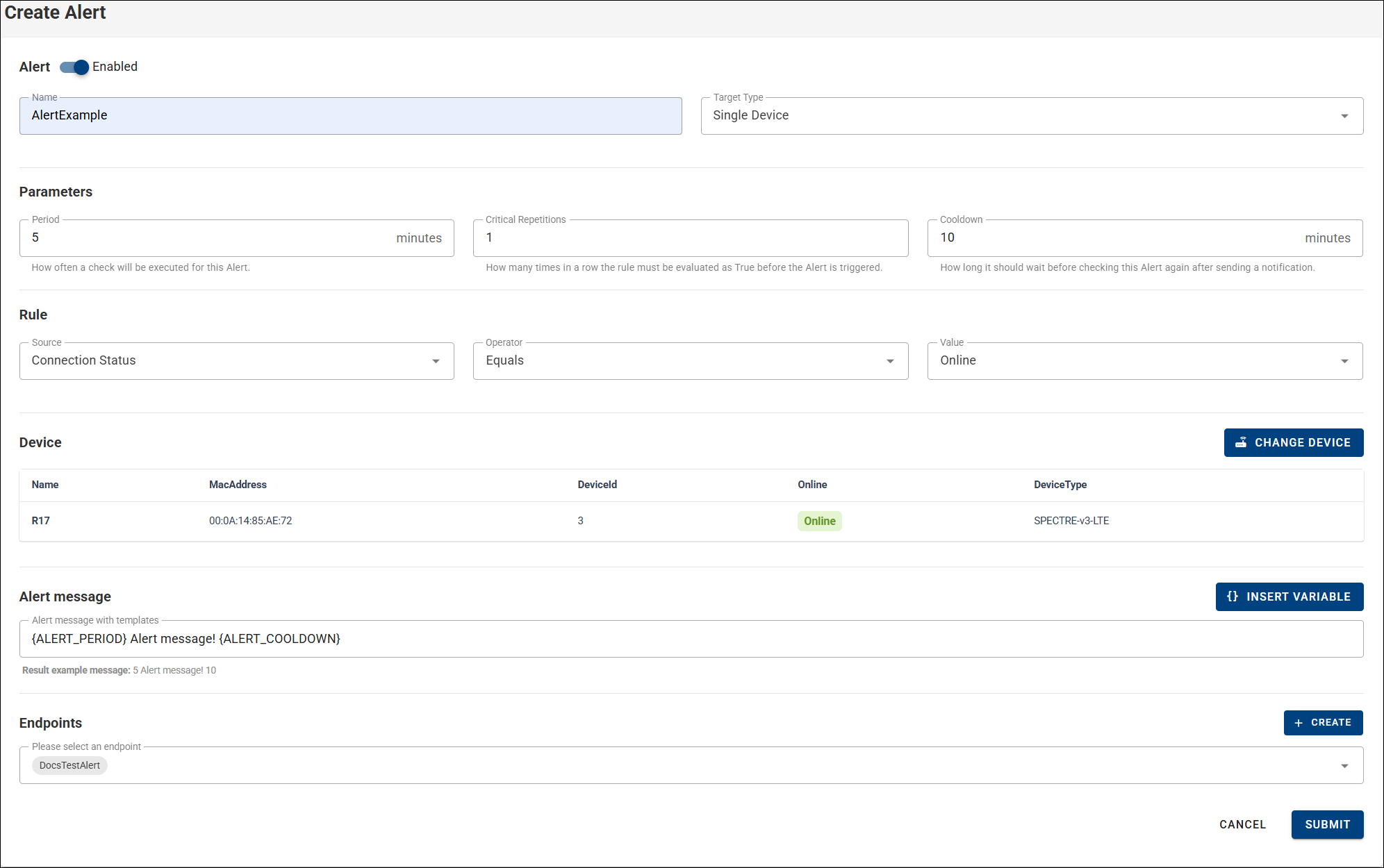
2.2 Single Device Target
For the Single Device target type, select the device from your current company to which the rule applies.
2.3 Devices Target
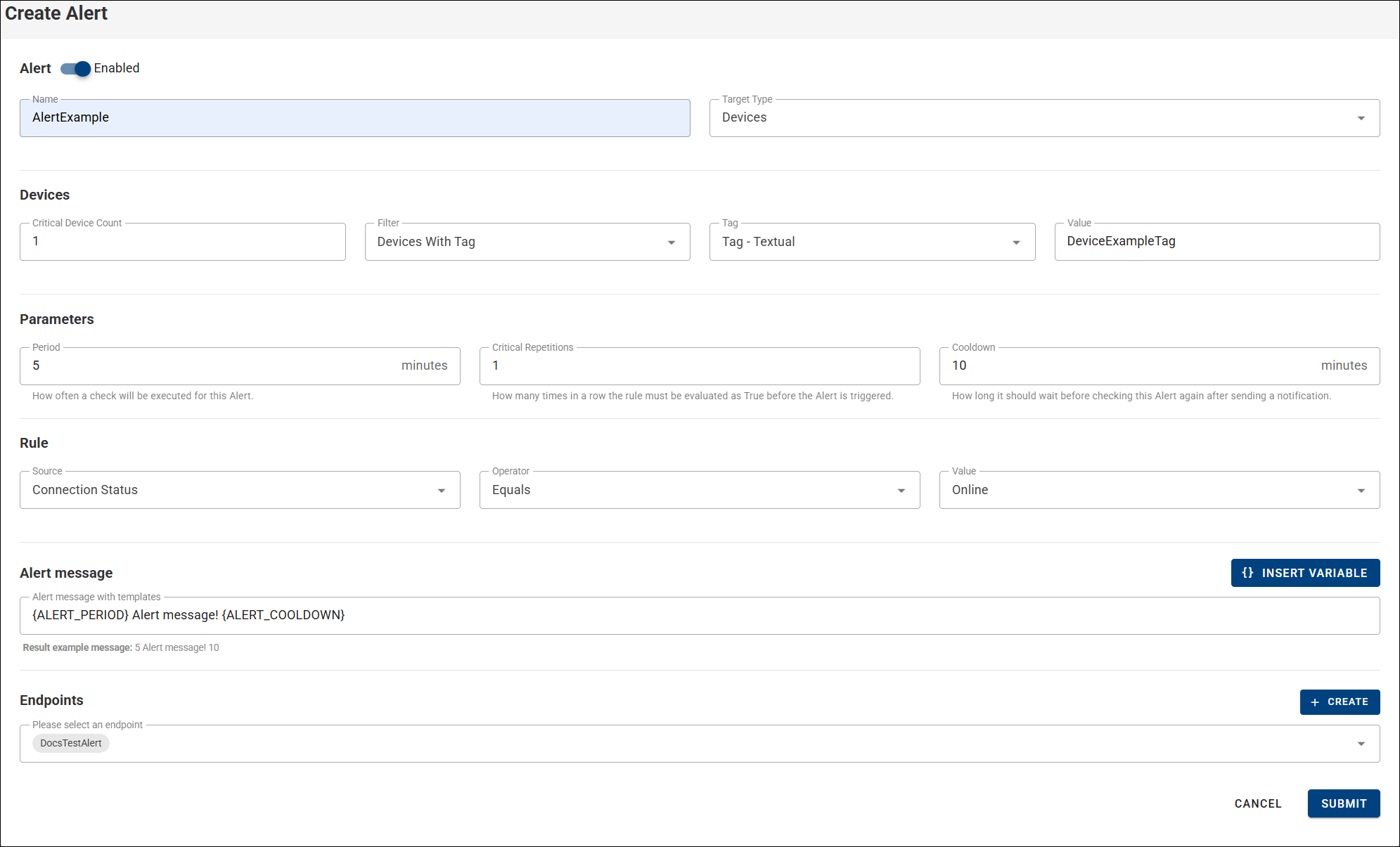
For the Devices target type, you can apply the rule to all devices, or to devices matching a selected tag.
Available tag types:
- Tag – True/False — Values:
TrueorFalse. - Tag – Text — Custom textual tag values.
- Tag – Options — Predefined numeric or textual tag values.
3. Configure Rule Criteria
Select the parameter to evaluate and define the condition. For example, when using the NotInRange operator, you must specify two integer values.
WARNING
Fields from the DeviceState category (such as Online/Offline) are evaluated based on the device status at the time of the check. Monitoring and Auditing fields evaluate data over a defined time period.
4. Define Alert Message
Specify the message that is sent to the selected endpoints when the alert is triggered. You can insert variables into the message. The available variables depend on the selected rule type.

5. Select Endpoints
Choose one or more endpoints that will receive the alert notification. You can disable rule evaluation at any time without deleting the rule.
6. Save the Rule
Click Submit to create the alert rule.
7. Manage Alert Rules
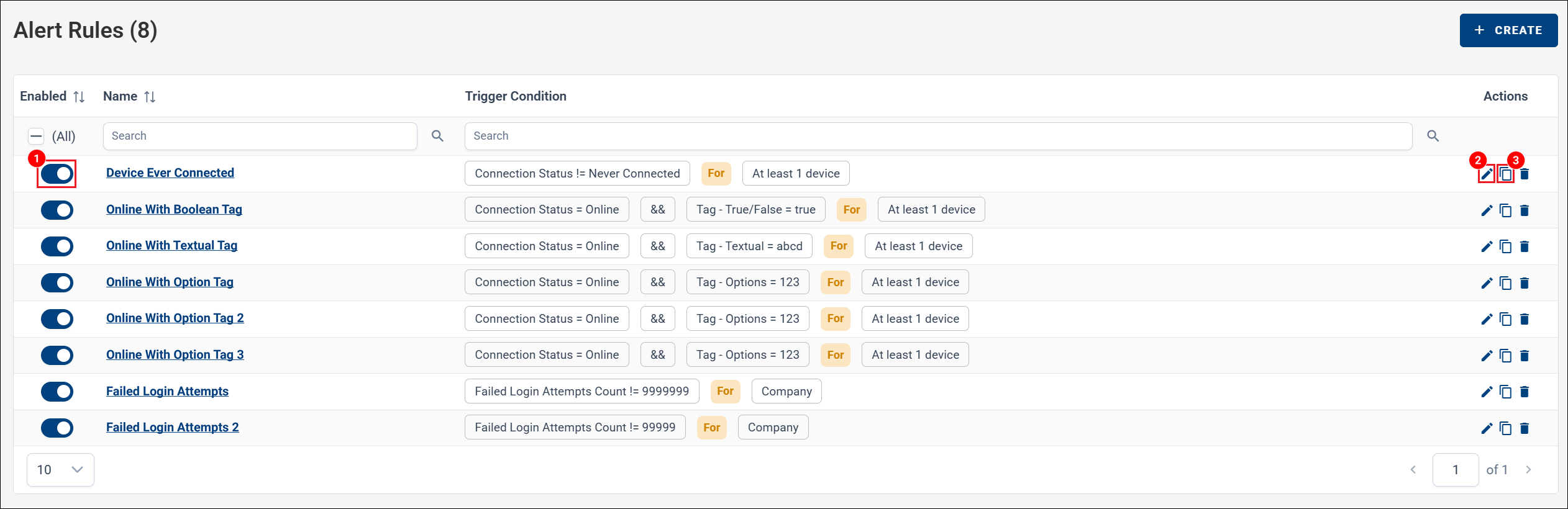
Created rules can be managed in the Rules table:
- Enable or disable rules using the toggle in the first column.
- Edit rules by clicking the rule name or pencil icon.
- Duplicate rules using the copy icon, which opens the Create New Rule form with pre-filled values.
Email Notifications and Alert History
When an alert is sent to an email endpoint, the notification appears in the recipient's inbox as shown below:
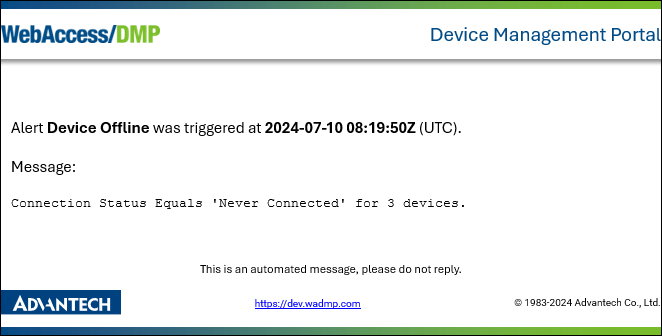
All triggered alerts are also recorded in Alerts → History, even if no endpoint is configured for the rule.
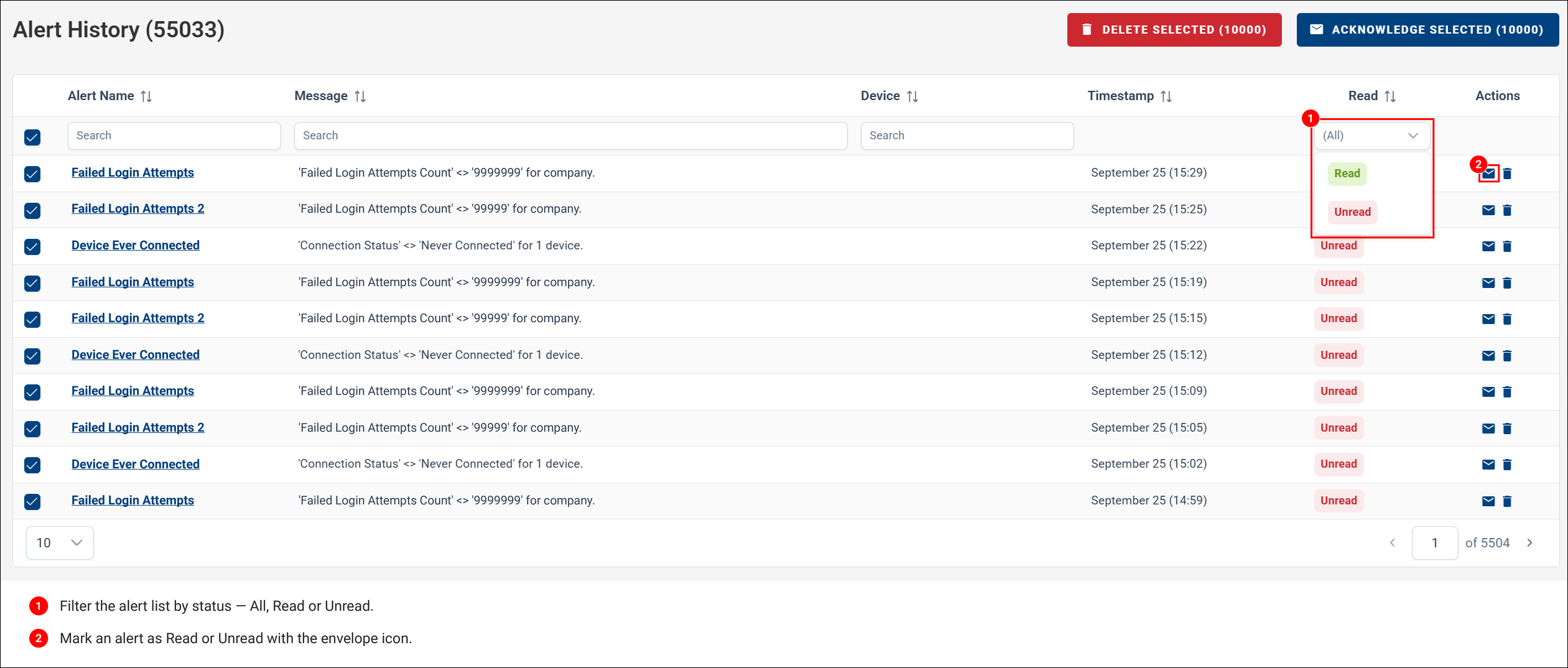
Alerts can be marked as Read or Unread using the envelope icon. The Alert History page can be filtered (for example, to show only read or unread alerts), and alert rule names are clickable, linking to the edit page of the corresponding rule.
You can select individual alerts or all alerts, then mark them as read or delete them in bulk.