
Appearance
Two-Factor Authentication (2FA)
Two-Factor Authentication provides an additional layer of security for user accounts. When enabled for a company, all company users are required to enter a one-time password generated by an authenticator application after signing in. If 2FA is not enabled, users can sign in using just their email and password.
Enabling 2FA
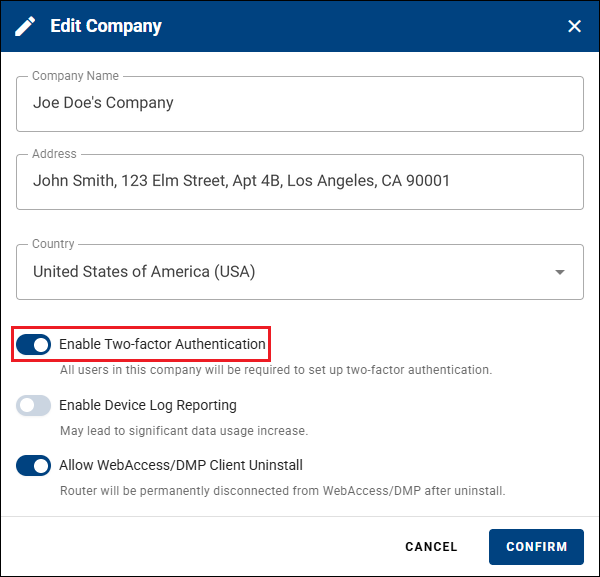
2FA is enabled at the company level in the Company Edit form. Once enabled, all users in the company are required to configure 2FA at their next login. Until this setup is completed, they cannot access the system.
WARNING
Interactive user accounts can use the web UI and the Swagger UI, but they cannot authenticate from scripts or the API. Non-interactive access (scripts, API) requires a Service Account, which bypasses 2FA and, in turn, cannot sign in to the web UI or the Swagger UI. For more information, see Service Accounts.
Enabling 2FA for Your Own Account
You can enable 2FA on your own account at any time from your User Profile, even if none of your companies require it. This keeps your account protected regardless of company settings.
Logging in with 2FA
To use 2FA, install one of the following authenticator applications on your mobile device:
- Google Authenticator (Android)
- Microsoft Authenticator (Android)
- Google Authenticator (iOS)
- Microsoft Authenticator (iOS)
When logging in for the first time after 2FA is enabled, enter your email and password as usual. You will then be prompted to set up 2FA — scan the QR code on the screen with your authenticator app, or enter the setup key manually.

During setup, recovery codes are generated and displayed. Store them in a safe place — they let you sign in if you lose access to your authenticator app.
After setup, your authenticator app will generate a one-time 6-digit code. On subsequent logins, after entering your email and password, you will be prompted to enter this code to complete the sign-in.