
Appearance
Audit Logs
Every user action that creates, modifies, or deletes data generates an audit log entry. Audit logs are retained for a limited period and can be used for security reviews, troubleshooting, and compliance purposes.
Searching Audit Logs
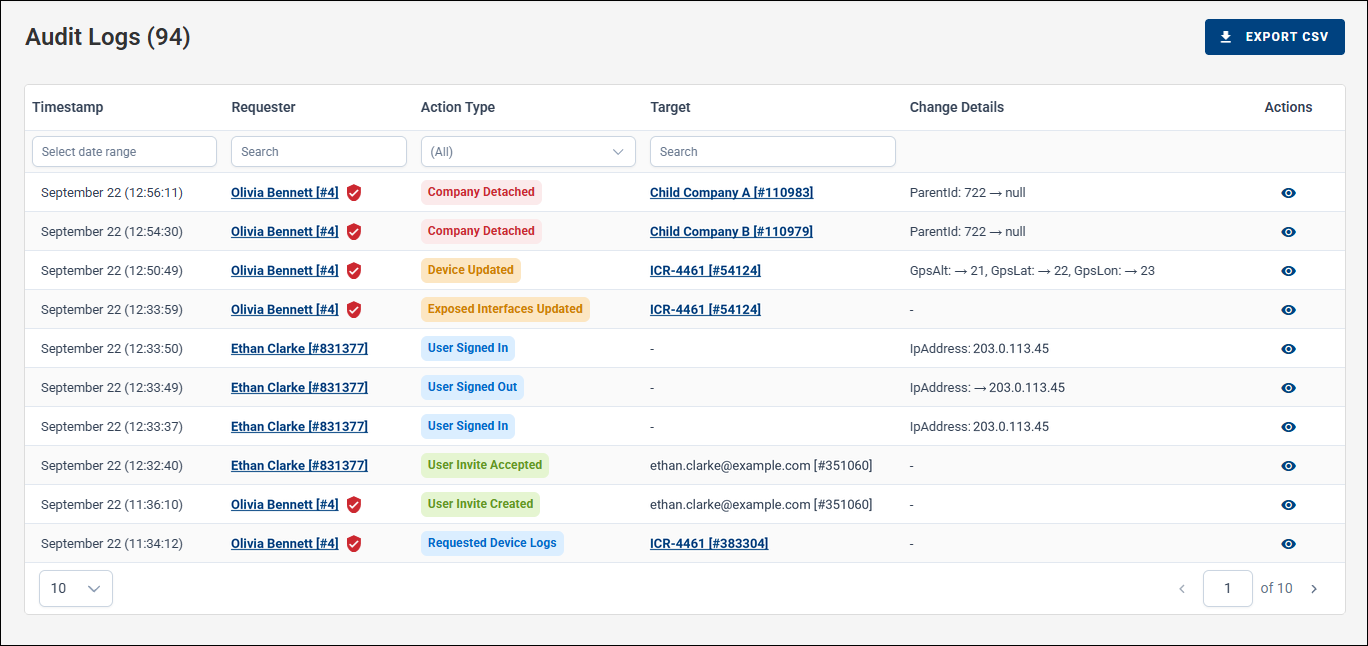
Accessing Global Audit Logs
Select Audit Logs from the left navigation menu.
Accessing Device-Specific Audit Logs
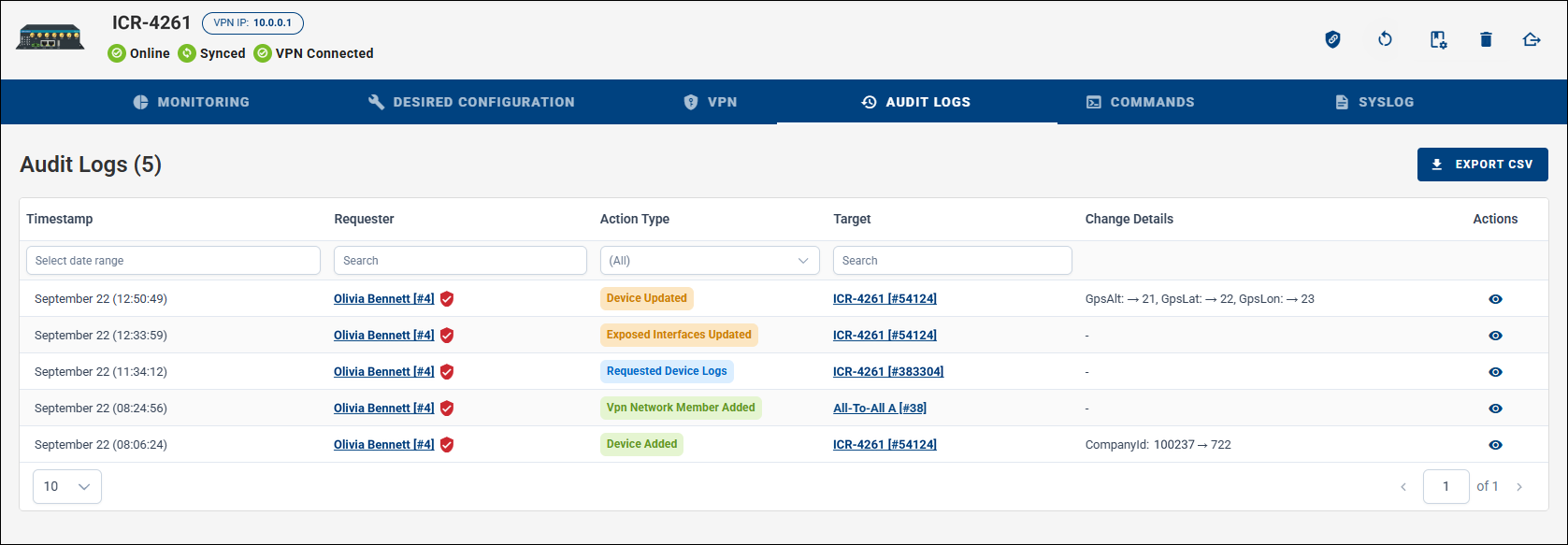
From the Dashboard, open a device detail page and select Audit Logs.
Accessing User-Specific Audit Logs
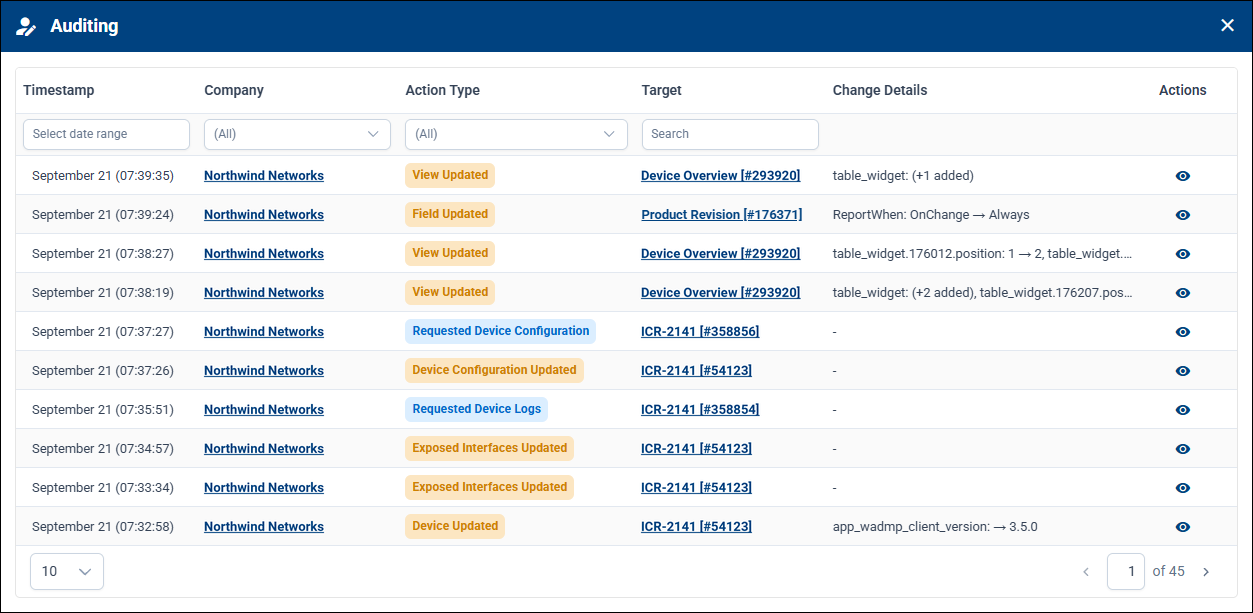
Open Users from the left navigation menu, select the user, click the Edit (pencil) icon to open the user profile, and then open the Auditing tab. The same view is accessible from the current user's own profile.
Filtering Audit Logs
Use the Start Time and End Time fields to limit the displayed audit records to a specific time range.
Audit logs can also be filtered by the type of recorded action.
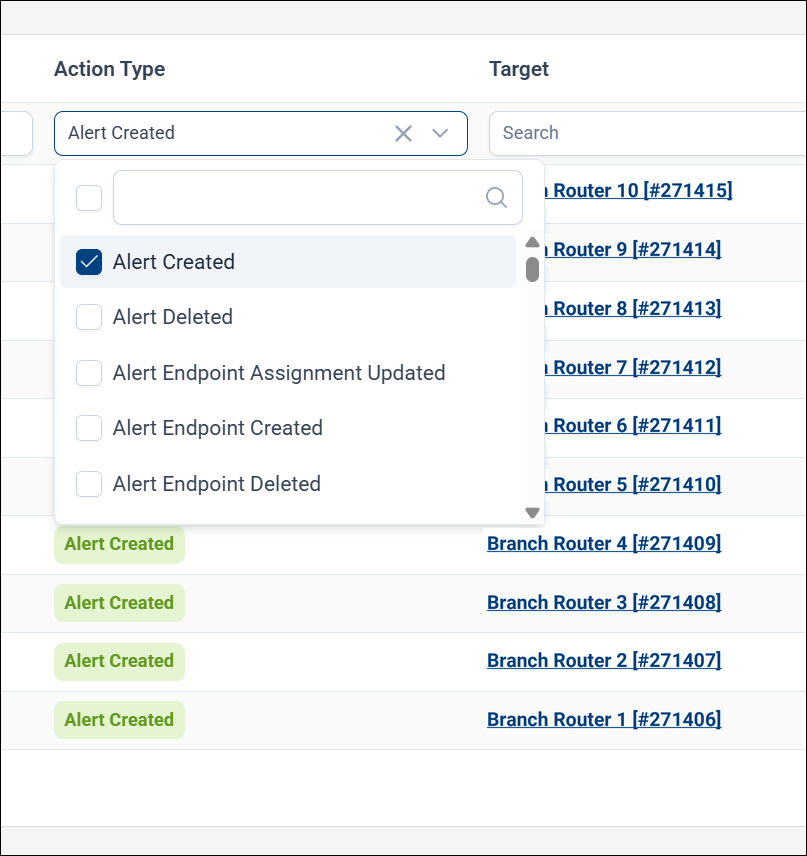
Action types are color-coded for easier scanning, and each record captures its change details as structured data that shows exactly what was changed.
Exporting Audit Logs
Audit logs can be exported to a CSV file for external analysis or record-keeping.
Audit Log Retention
Default view: By default, the Audit Logs page shows the 10 most recent records. Set a larger page size to display more records at once.
Retention policy: Audit logs are retained on WebAccess/DMP for 90 days. Records older than this period are automatically deleted.
Viewing older records: To see older records (within the retention period), increase the page size and page through the list, or narrow the view using the Start Time and End Time controls at the top of the Audit Logs page.