
Appearance
Tips & Tricks
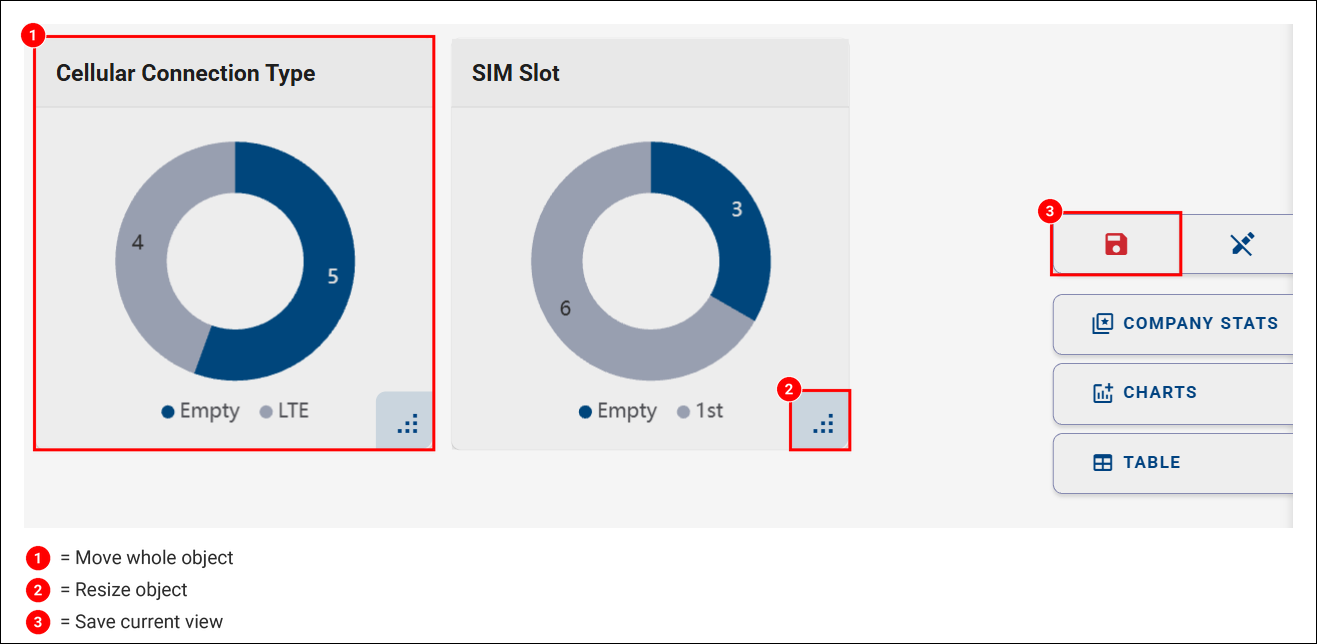
Resizing and Moving Widgets
This functionality applies to both Company and Device dashboards.
To adjust the size or position of widgets:
- Switch to Edit View mode.
- Drag a widget to resize it or move it to a new position.
To exit Edit View mode:
- Click the Floppy Disk icon to save your changes, or
- Click the Undo button to discard them.
Editing or Adding a Device Description
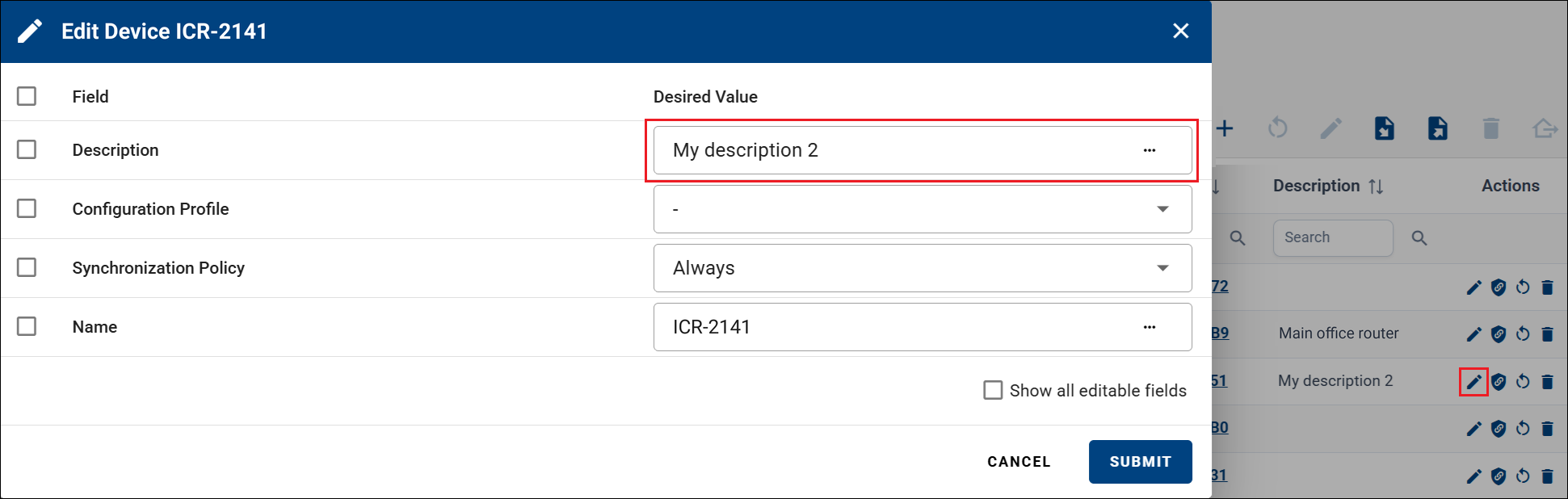
To edit or add a description for a device:
- Click the Edit icon on the device you want to modify.
- Enter the desired description.
- Submit the changes.
Device Tagging
Tags allow you to organize, filter, and group devices. Using tags, you can create overlapping groups of devices and quickly filter or search for them.
After logging in to the system, ensure that the Tag – Textual field is available in the device filter panel.
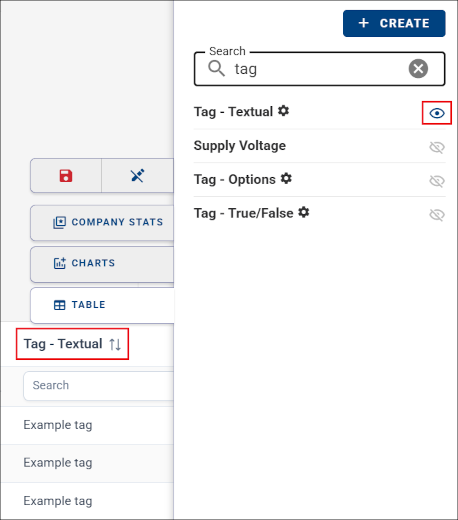
If the field is not available, you can add it by following Creating and Removing Fields.
Creating Tags
Make the Tag – Textual field visible.
Select the devices you want to tag.
Click the Batch Edit Filtered Devices icon.
In the Batch Edit Filtered Devices dialog:
- Enter the desired tag value in the Tag – Textual (Desired Value) field.
- Review the number of affected devices shown above the Submit button.
- Click Submit to apply the tag.
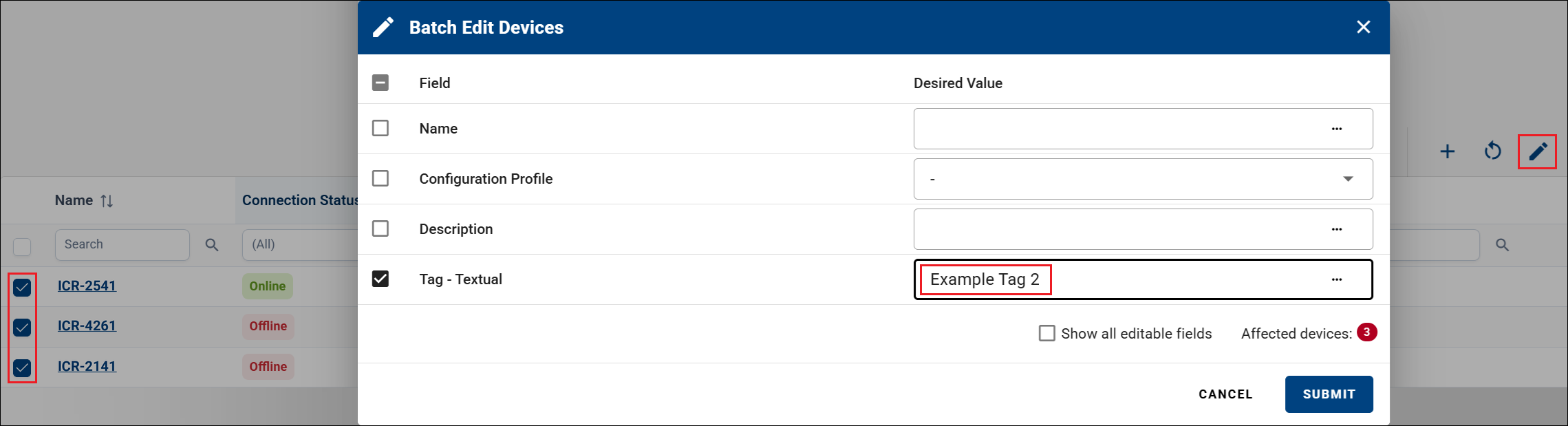
The selected devices are now tagged.
Filtering by Tag
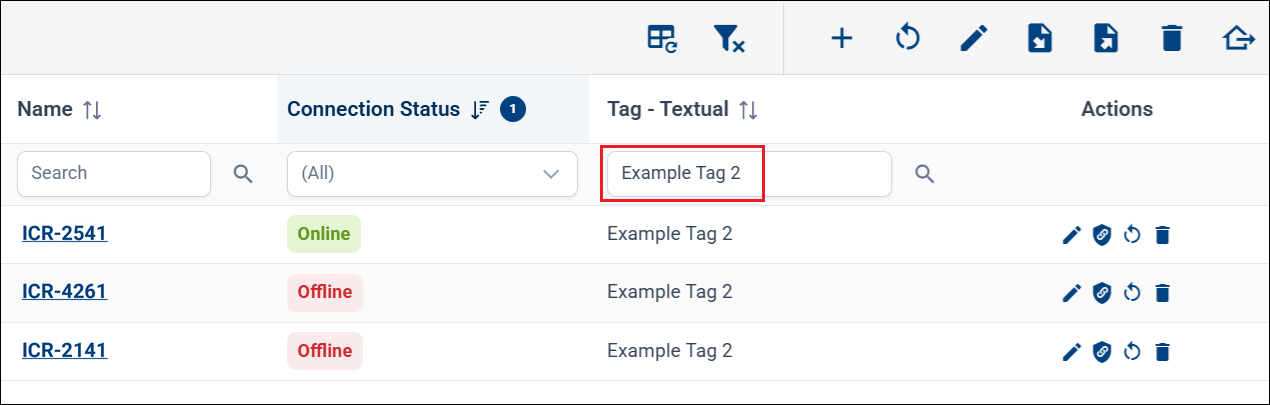
To filter devices by tag, type the tag value into the filter field. Only devices with the specified tag are displayed.
Data Export
You can export device data to CSV files for use in Excel or other tools. Click the CSV Export icon above the device table to download the data.
All devices in the current view are exported — the export is not affected by row selection. To export only a subset of devices, narrow the device table using the filter first; only the filtered (matching) rows are exported.

For more details, see Exporting Data to CSV.
Data Import
You can import configuration and data for devices from CSV files:
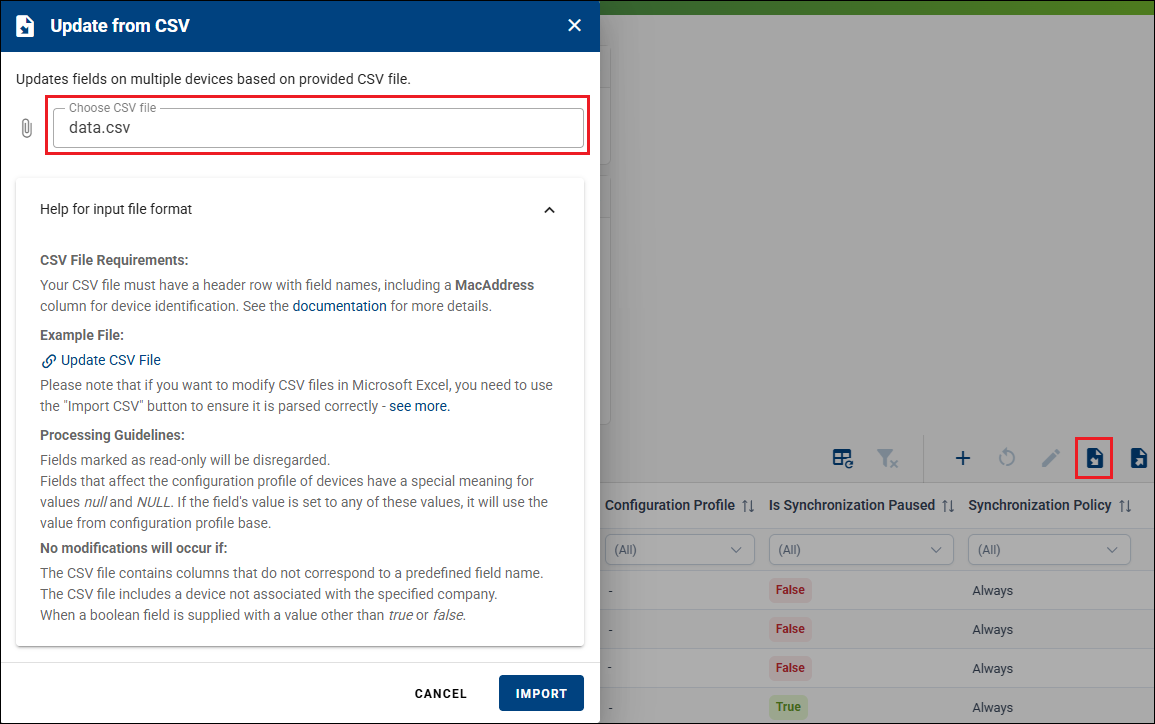
- Click the CSV Import button.
- Select the CSV file to upload.
- Review the Help for input format section for file requirements.
- Click Submit to complete the import.
For more information, see Device Configuration.