
Appearance
Install / Upgrade the WADMP Client App
If you are migrating a device from a 2.x.x instance, you must upgrade the Router App to a 3.x.x version using the 2.x.x WebAccess/DMP instance. For details, see Migration from 2.x.x to 3.x.x Instance.
If the WebAccess/DMP Client Router App is not installed on your device, or if you are unsure whether it is installed, follow the steps below.
Step 1: Check for the Installed Client App
- Sign in to your router’s web interface (the default IP address is
192.168.1.1on the ETH0 interface). - Navigate to Customization → Router Apps in the menu.
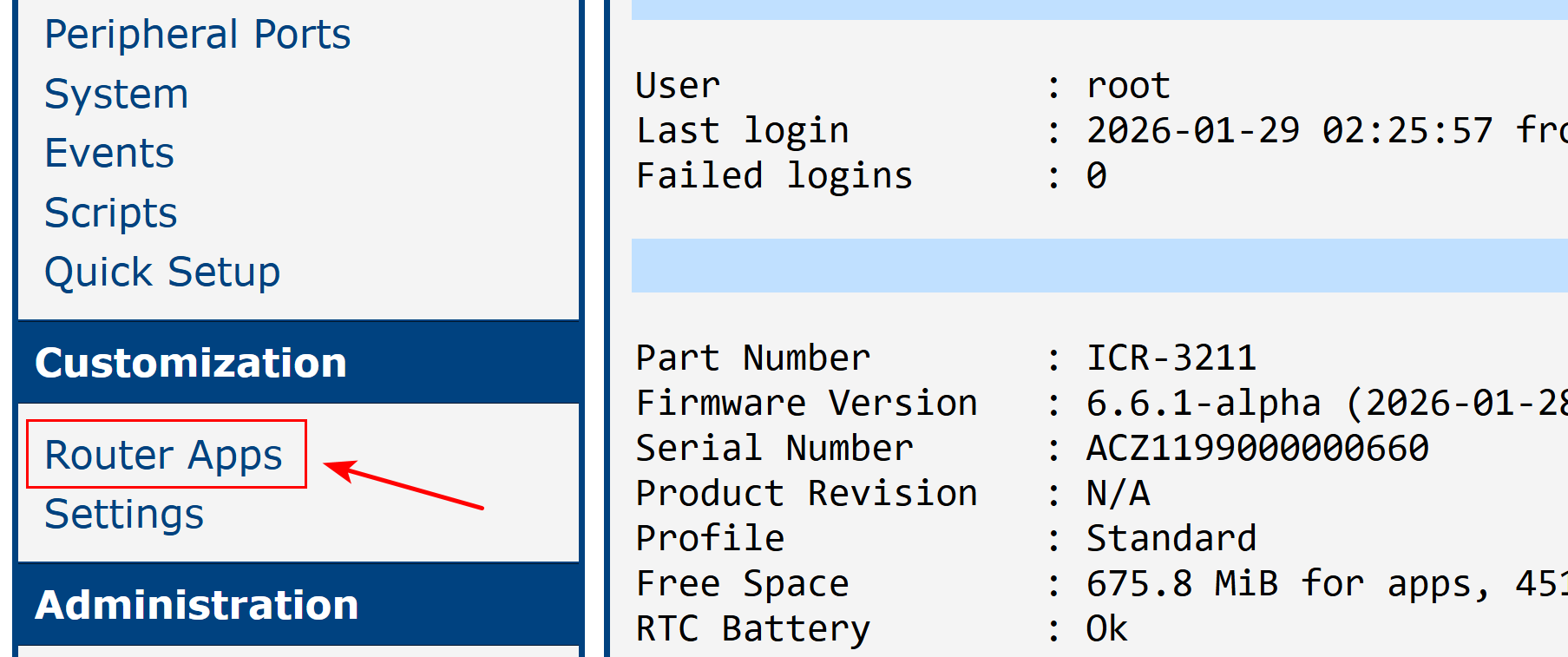
Note
If the WebAccess/DMP Client Router App is already installed, the device should be able to connect to the WebAccess/DMP instance. Verify the installed version and upgrade to the latest one if necessary (recommended).
You can upgrade the client directly from WebAccess/DMP by selecting the desired version in the Desired Configuration tab on the device page, or by applying a Configuration Profile with the required Client App version to multiple devices.
Step 2: Download the Client App
If the WebAccess/DMP Client Router App is not installed, download it first.
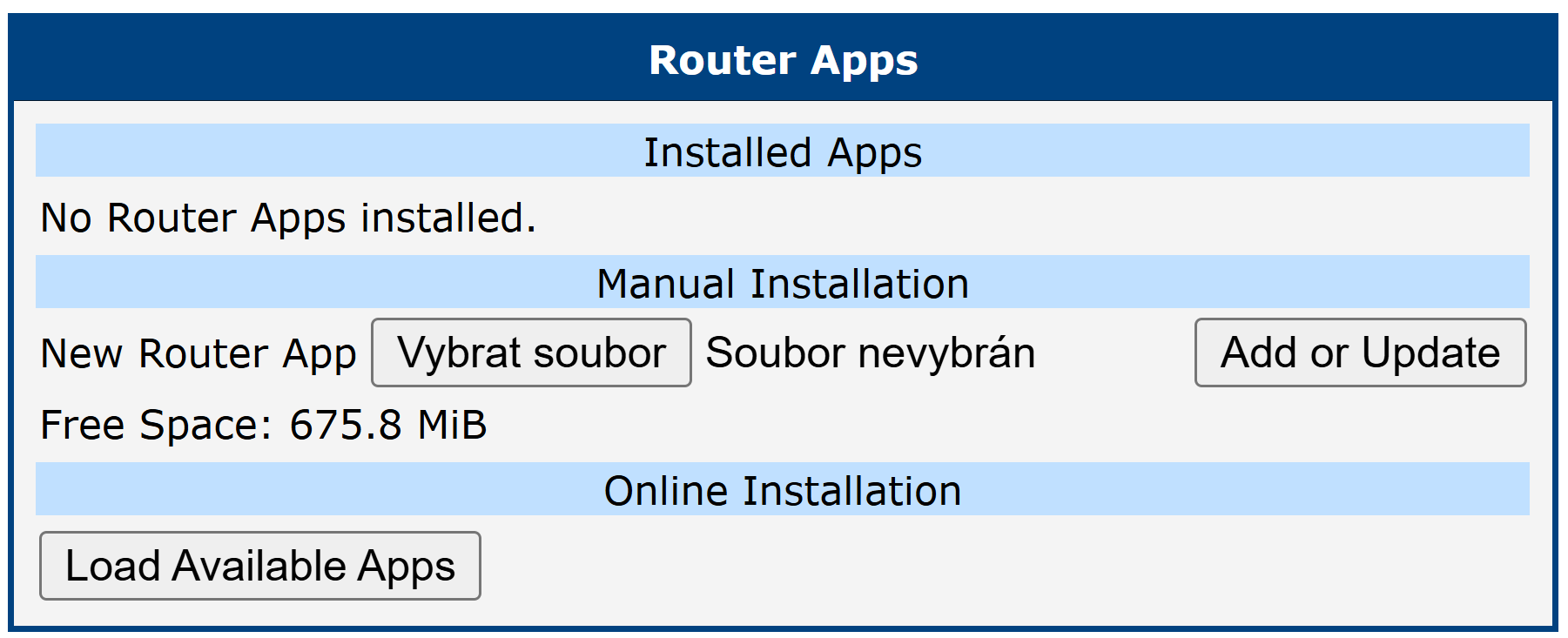
Step 3: Open the Download Page
From the WebAccess/DMP instance, open the download link:
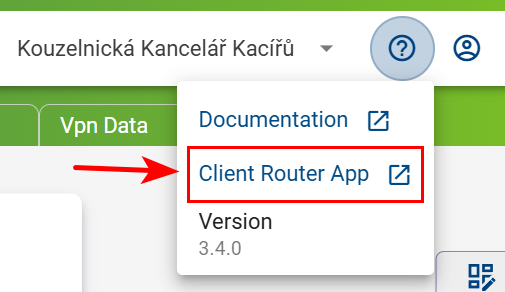
This will redirect you to the official download page:
WebAccess/DMP Client 3.x.x
An Application Note with configuration details is also available on this page.
Step 4: Install the Client App
- Download the appropriate
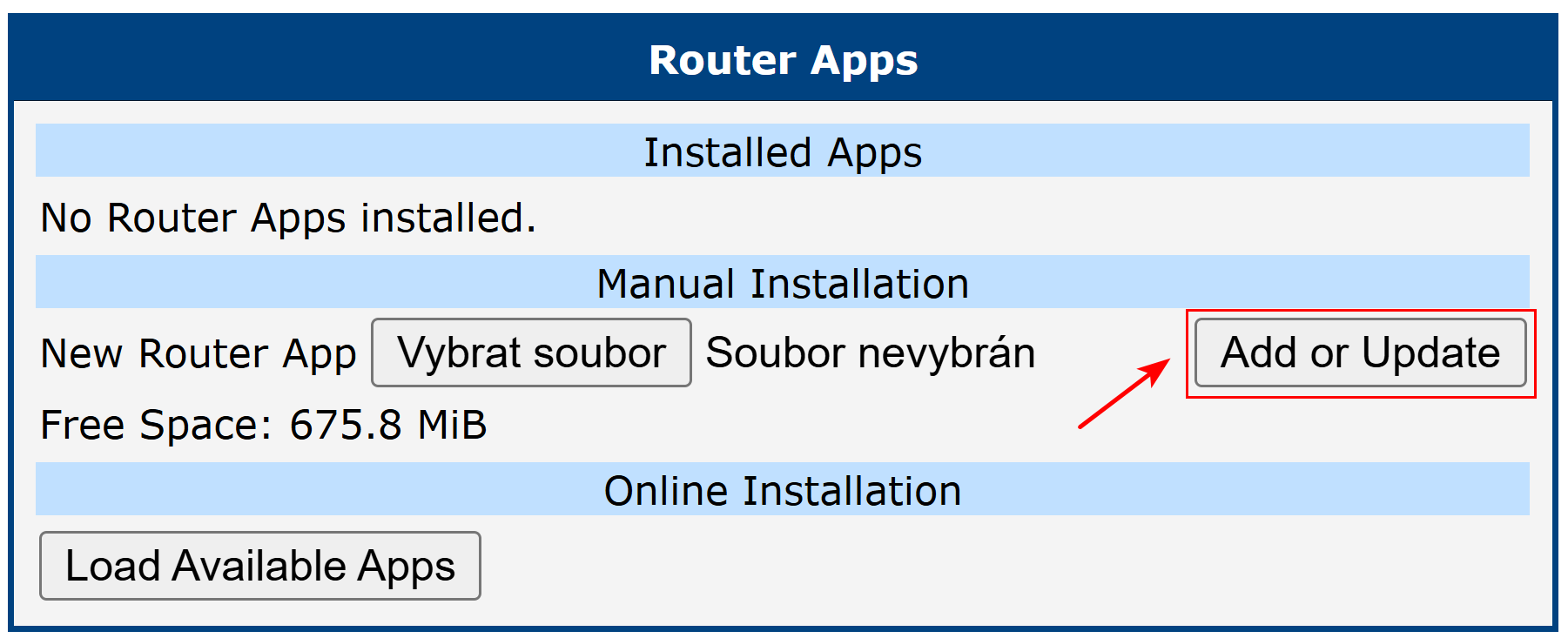
.tgzRouter App package for your device platform. - Install it manually through the device web interface under Customization → Router Apps.
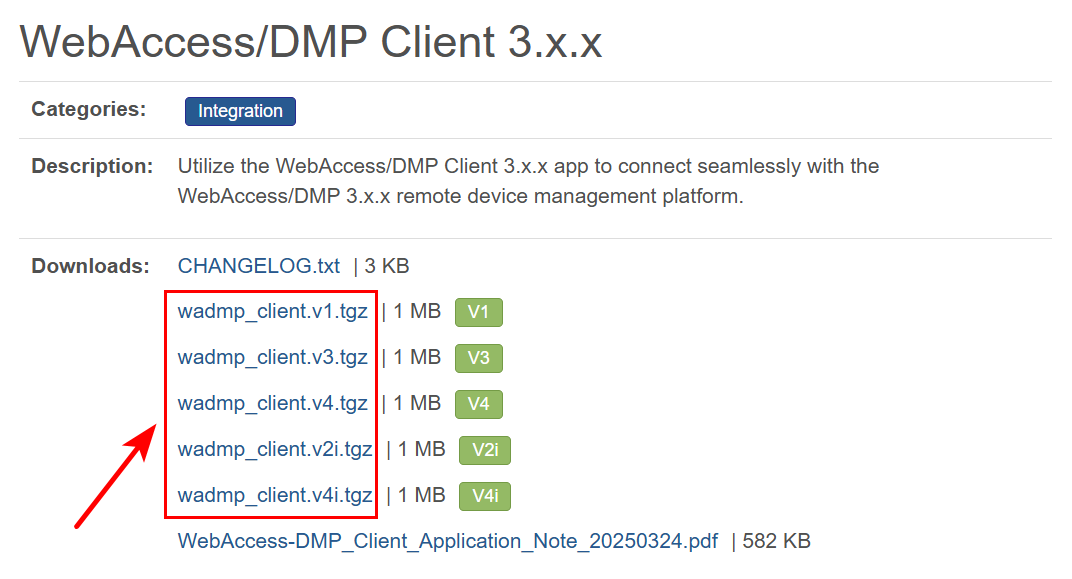
Step 5: Complete the Installation
- After installation, the device should be able to connect to the WebAccess/DMP instance.
- For manual upgrades, follow the same procedure and reinstall the package via Customization → Router Apps.
Caution
If the device cannot connect to WebAccess/DMP after installation or upgrade, see the Troubleshooting page or the FAQ.