Appearance
Move Device Between Companies
The Move Device feature allows administrators to transfer a device from one company to another.
Authorization and Requirements
To prevent unauthorized transfers, the following conditions must be met:
- Dual Membership: You must be a member of both the source company and the destination company.
- Source Permission: You must have the
RemoveDevicespermission in the company from which the device is being removed. - Destination Permission: You must have the
AddDevicespermission in the company to which the device is being added.
Transfer Options: Data Migration
When initiating a move, you must choose whether the device’s data should be transferred to the destination company. Two options are available:
Full Data Transfer
If you choose to move the device together with its data, the following information is preserved and migrated:
- Time-series data: Uptime statistics and reported metrics.
- Identity: Device name and metadata.
- Configuration: The desired configuration, ensuring the device maintains its intended state after the move.
Move Device Only
If you choose not to transfer data, the device will appear in the destination company as a new, clean entity. Historical metrics and configuration history will remain associated with the original company.
How to Move Devices
Devices can be moved either individually or in bulk.
Single Device Move
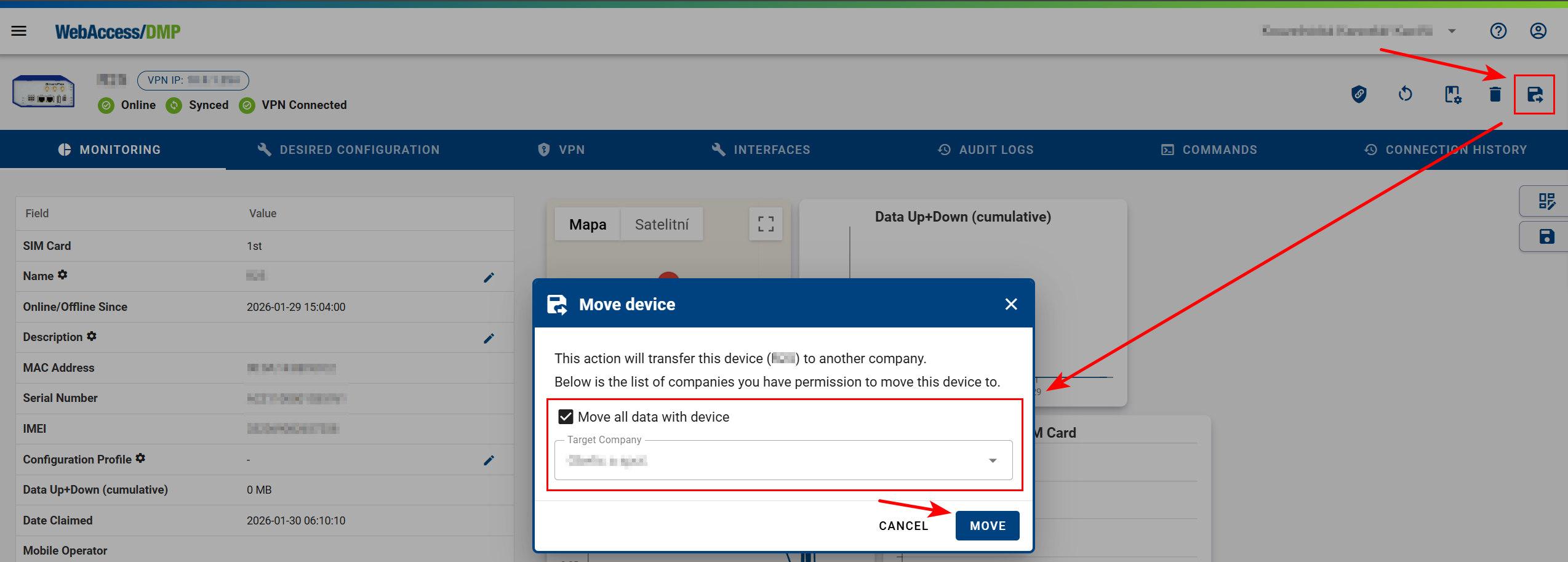
- Open the Device Detail page of the device you want to move.
- Click the Move Device action button.
- Select the Destination Company from the dropdown list.
- Enable or disable the Transfer Data option as required.
- Confirm the operation.
Batch Movement
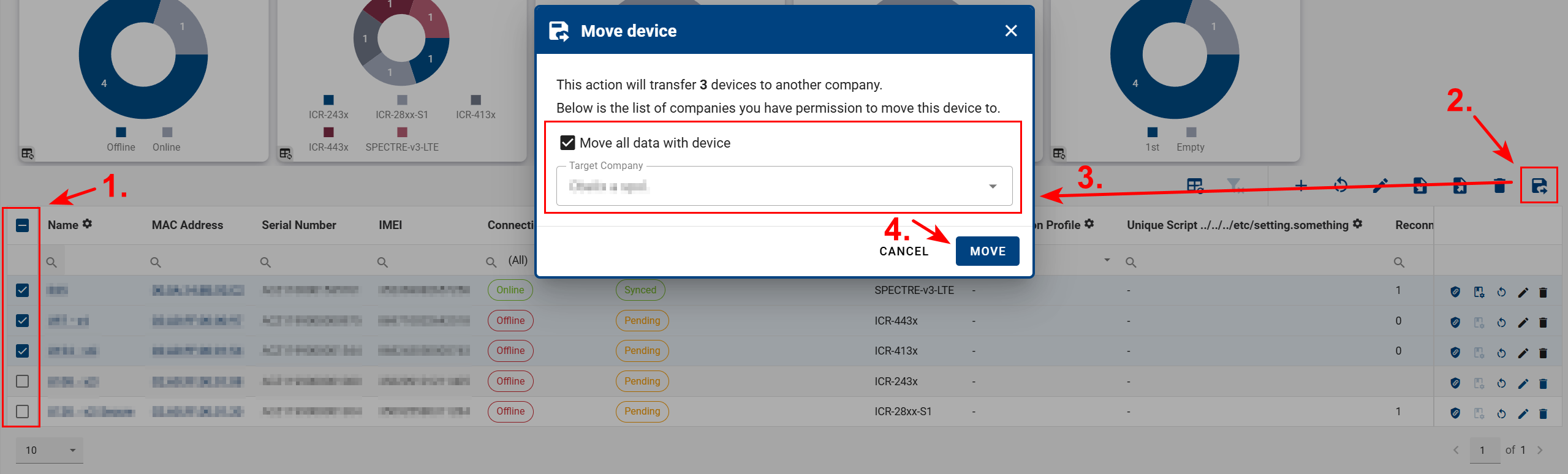
- Open the Dashboard or Device List page:
- Select multiple devices using the checkboxes.
- Click Move Selected Devices above the device table.
- Select the destination company and Transfer Data option.
- Confirm the operation.