Appearance
Creating New Alerts
To Receive Notifications – Create Endpoint(s)
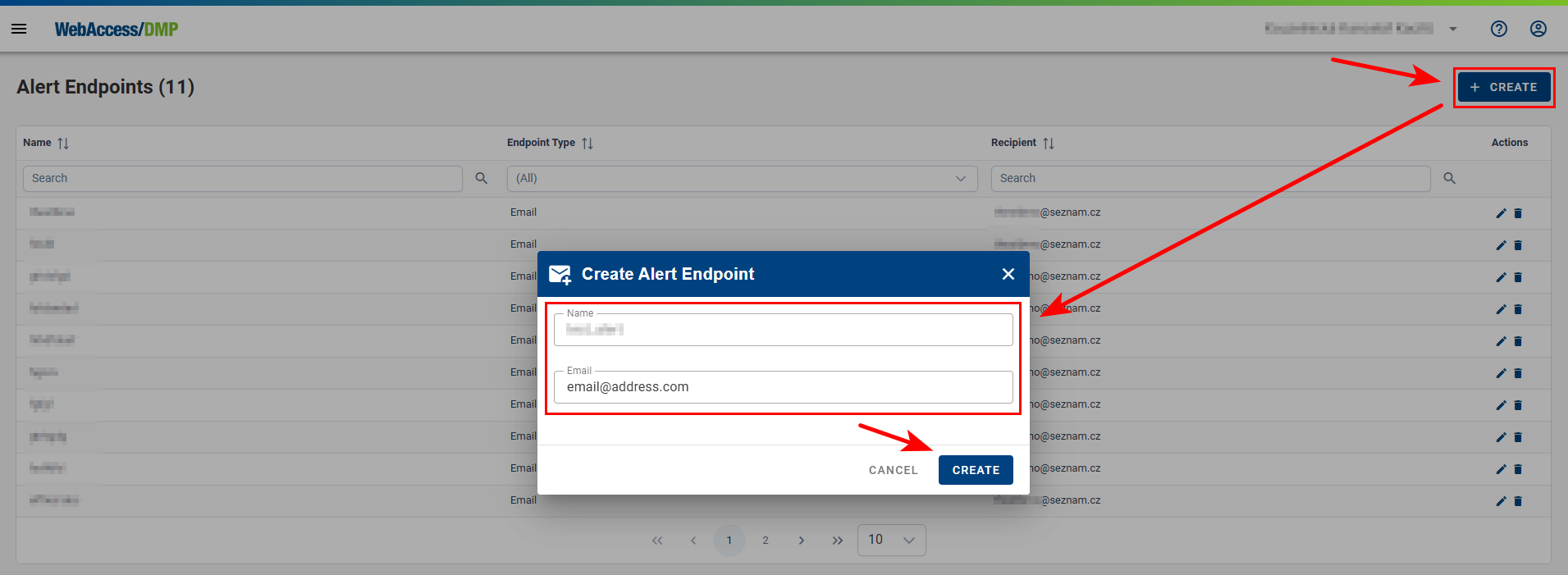
In the Alerts → Endpoints section, click the + CREATE icon to add a notification endpoint.
Endpoints define where alert notifications are sent (for example, email). You can create and configure multiple endpoints.
- Provide a Name and Email address for the endpoint.
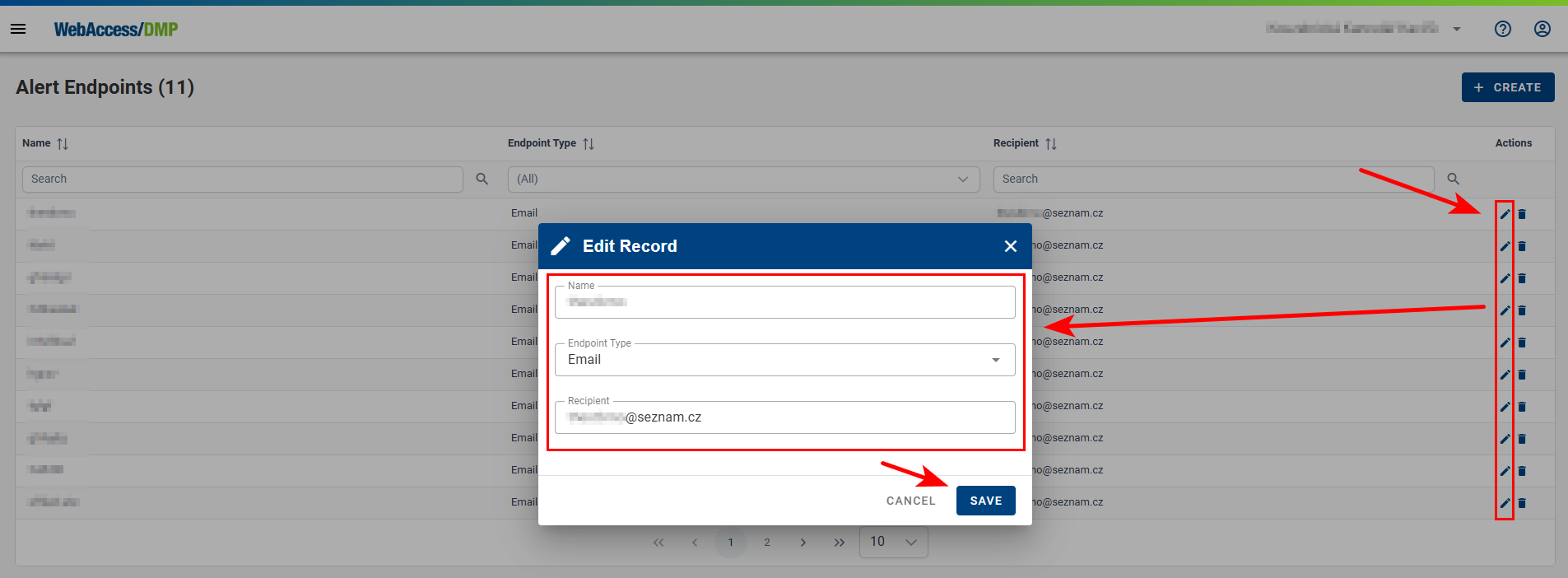
- To edit an existing endpoint, click the pencil icon in the right column of the Endpoints table.
Create Alert Rule(s)
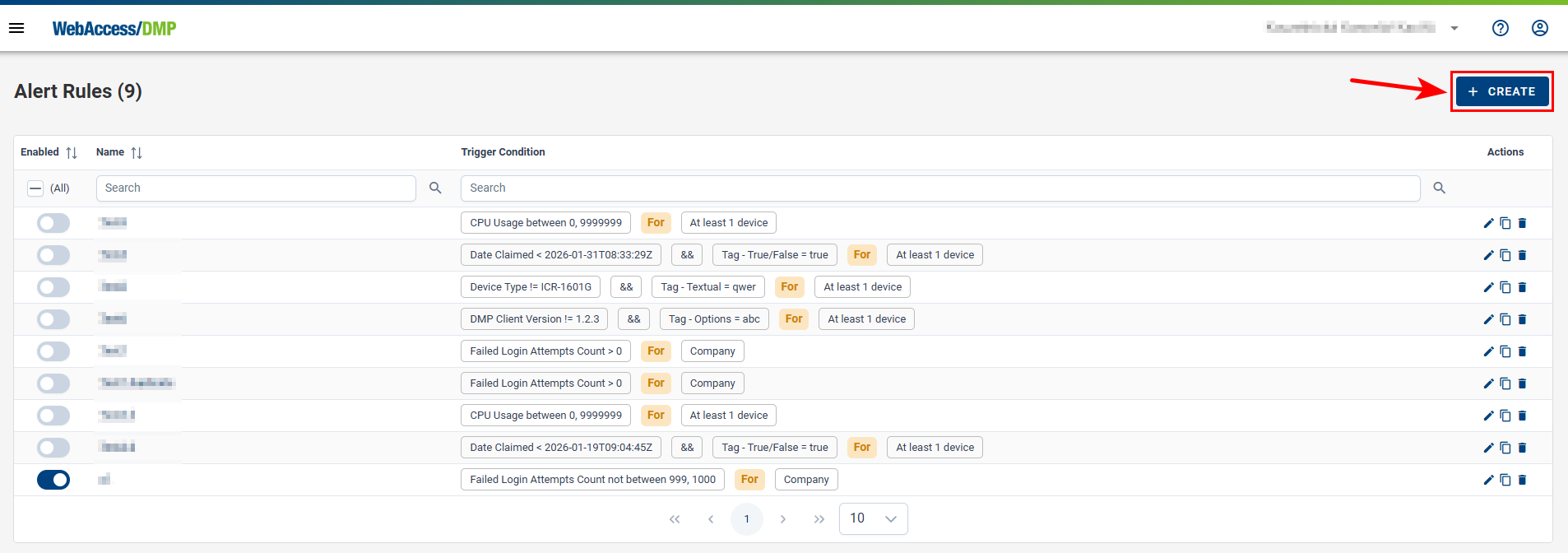
Create a new alert rule by clicking the + CREATE icon in the Alerts → Rules section.
1. Select Target Type
When creating a rule, choose one of the following Target Types:
- Company — applies the rule to all devices in the current company.
- Single Device — applies the rule to one specific device.
- Devices — applies the rule to all devices or only devices with a selected tag.
2. Define Rule Parameters
Configure the rule parameters, including the cooldown period.
The cooldown starts immediately after an alert is triggered. Once the cooldown expires, rule evaluation resumes based on the configured interval.
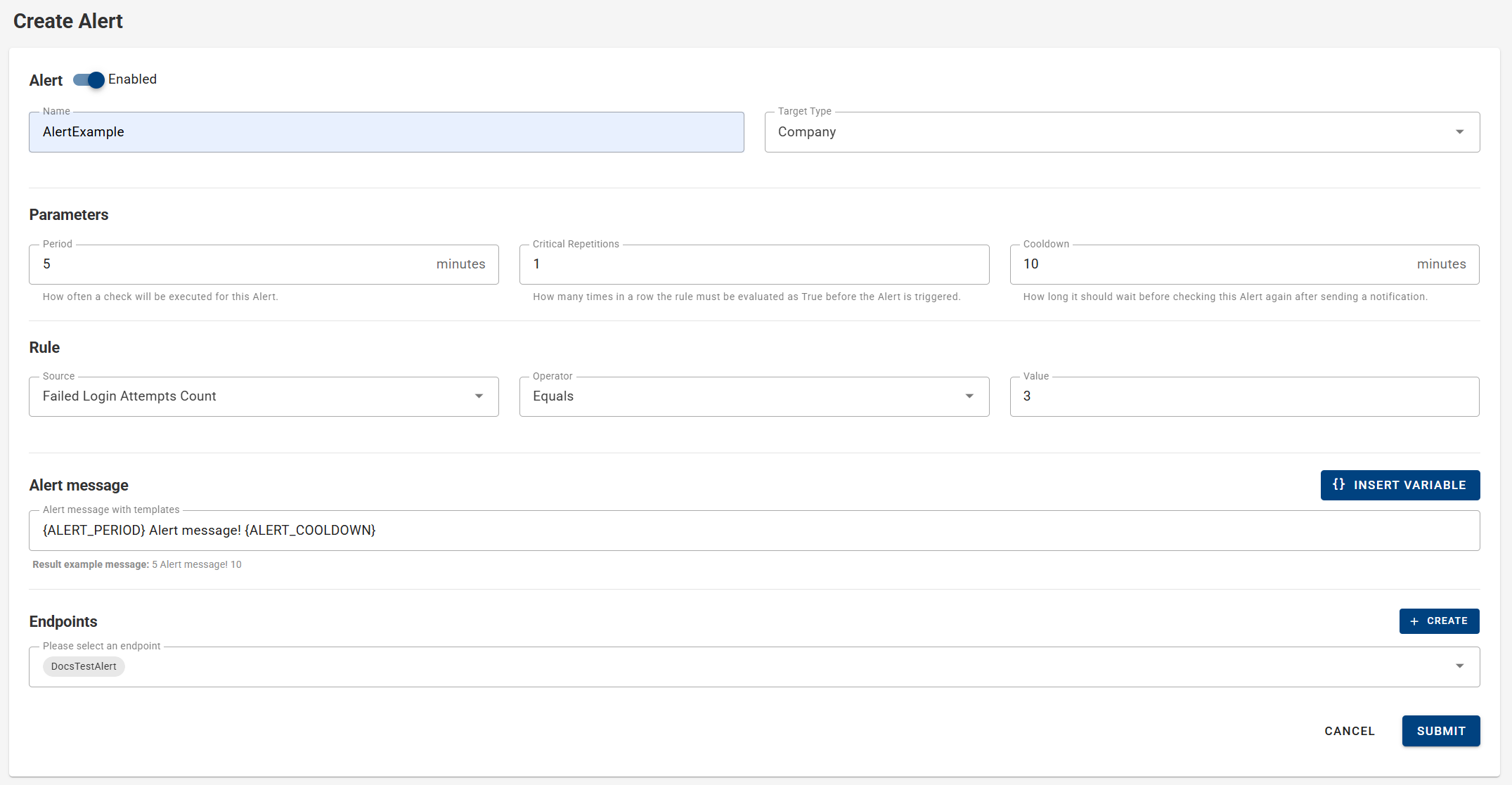
2.1 Company Target
For the Company target type, you can choose from:
- Failed Login Attempts
- Users Count
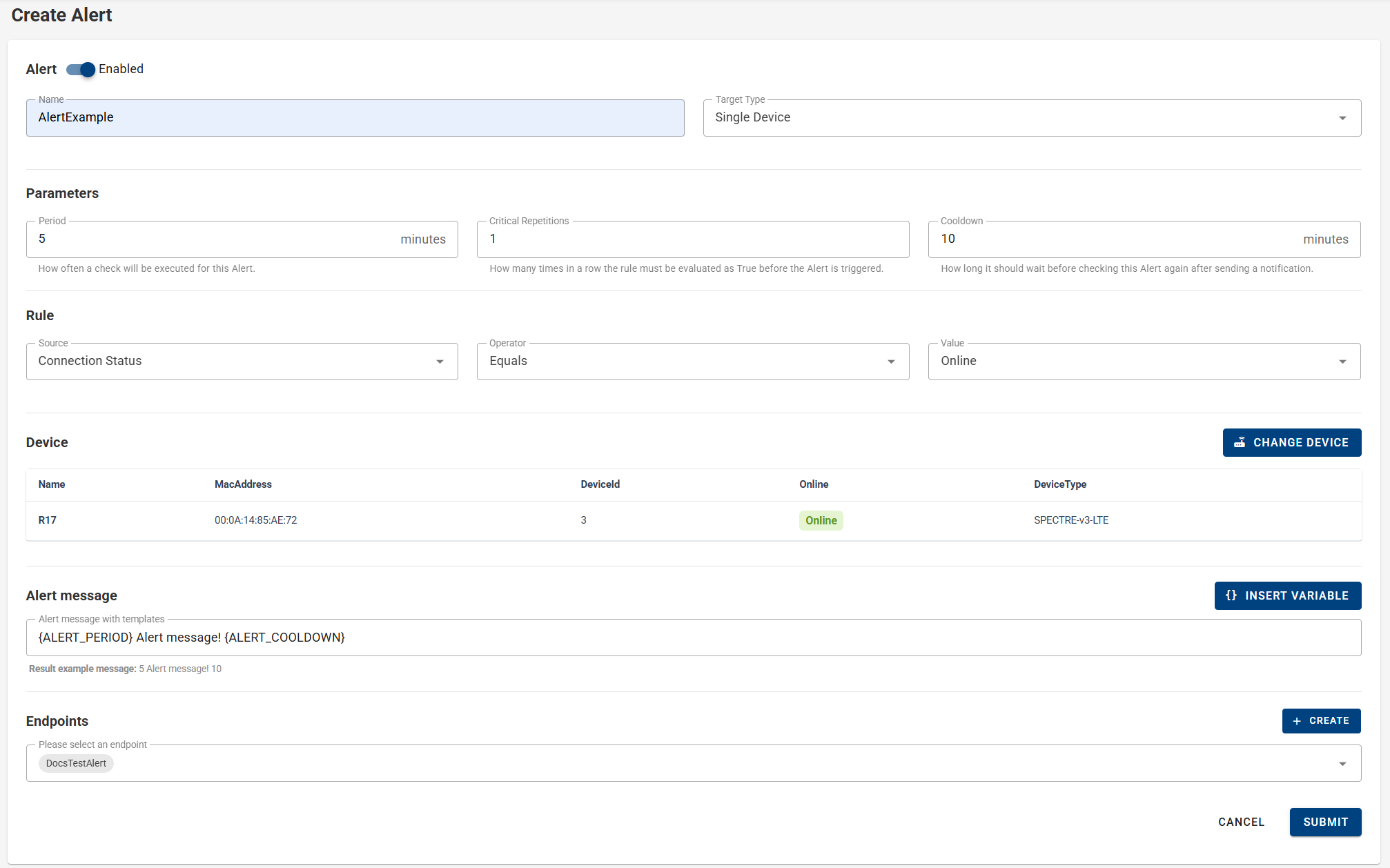
2.2 Single Device Target
For the Single Device target type, select the device from your current company to which the rule will apply.
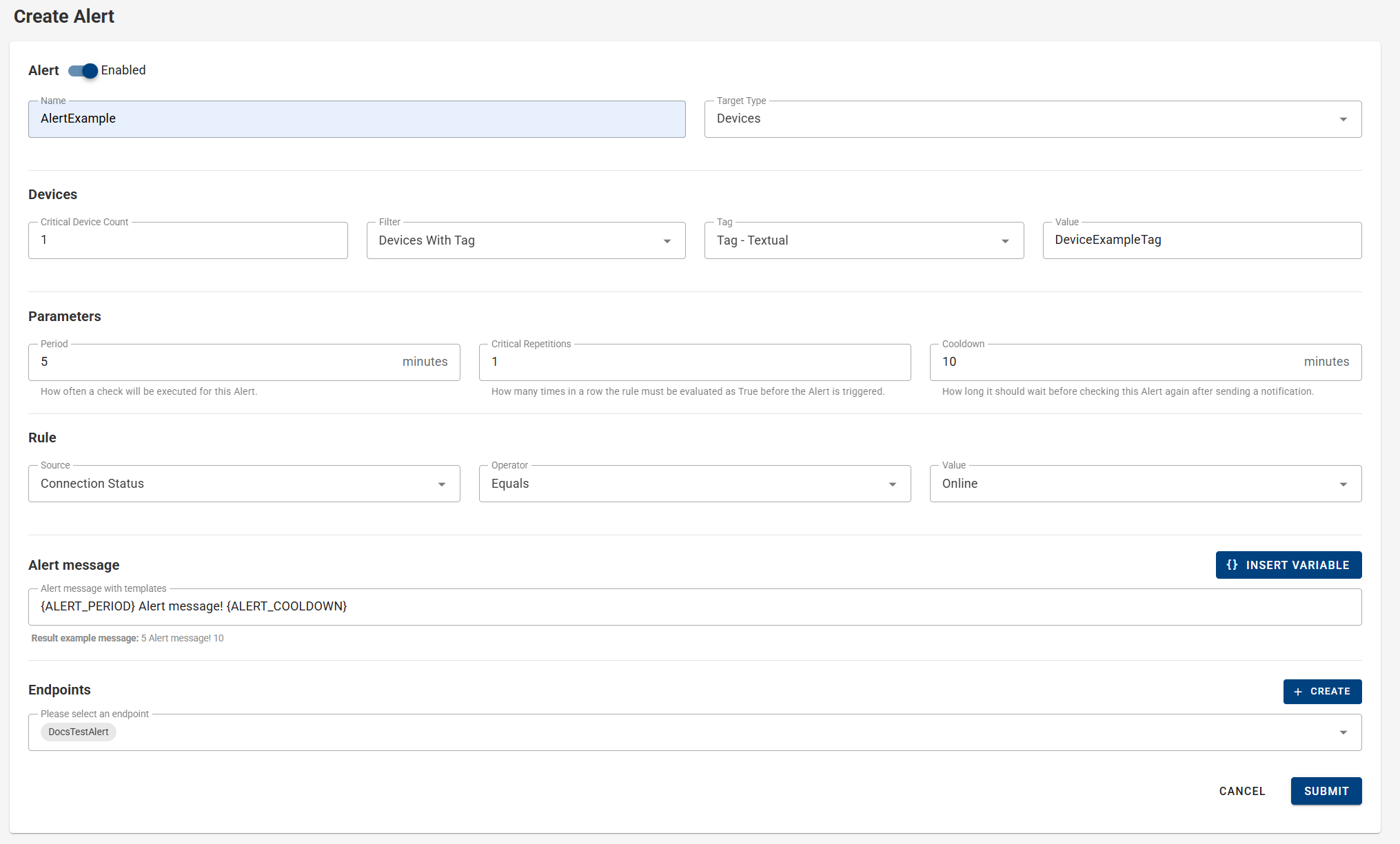
2.3 Devices Target
For the Devices target type, you can apply the rule to:
- All devices, or
- Devices matching a selected tag
Available tag types:
- Tag – True/False — values:
TrueorFalse - Tag – Text — custom textual tag values
- Tag – Options — predefined numeric or textual tag values
3. Configure Rule Criteria
Select the parameter to evaluate and define the condition.
For example, when using the NotInRange operator, you must specify two integer values.
Important Notice
Fields from the DeviceState category (such as Online/Offline) are evaluated based on the device status at the time of the check.
In contrast, Monitoring and Auditing fields evaluate data over a defined time period.
4. Define Alert Message
Specify the message that will be sent to the selected endpoint(s) when the alert is triggered.
You can insert variables into the message. The available variables depend on the selected rule type.

5. Select Endpoints
Choose one or more endpoints that will receive the alert notification.
You can disable rule evaluation at any time without deleting the rule.
6. Save the Rule
Click Submit to create the alert rule.
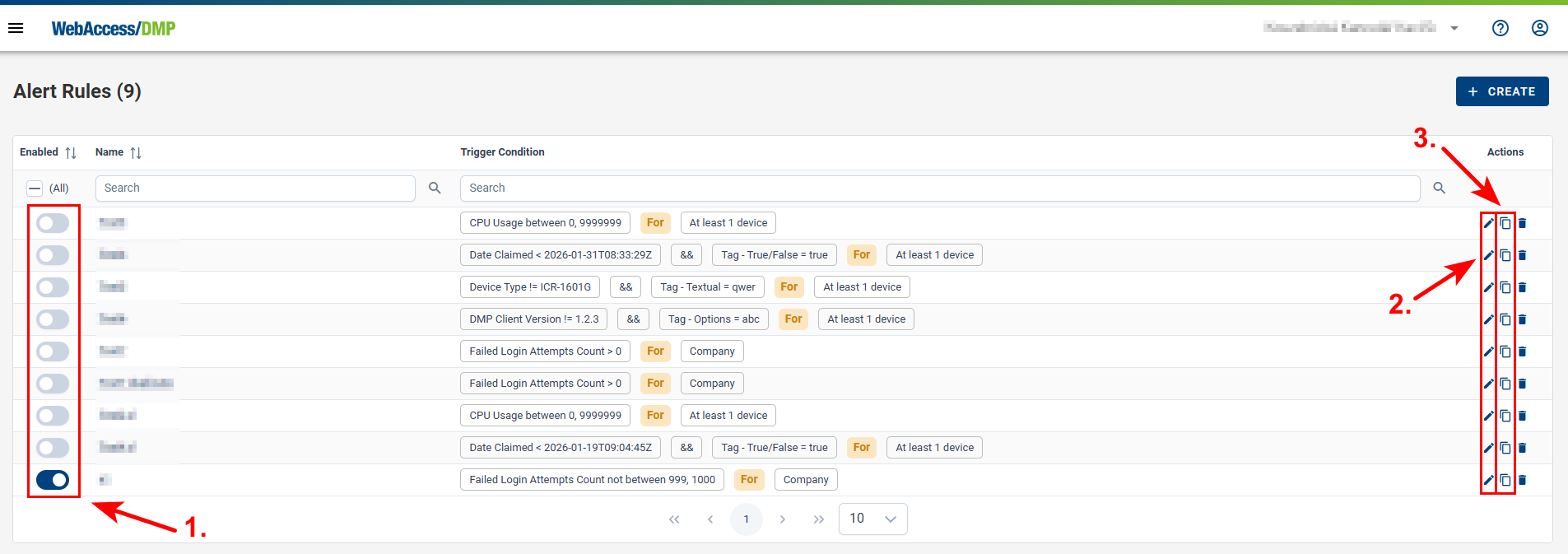
7. Manage Alert Rules
Created rules can be managed in the Rules table:
- Enable or disable rules using the toggle in the first column
- Edit rules by clicking the rule name or pencil icon
- Duplicate rules using the copy icon, which opens the Create New Rule form with pre-filled values
Email Notifications and Alert History
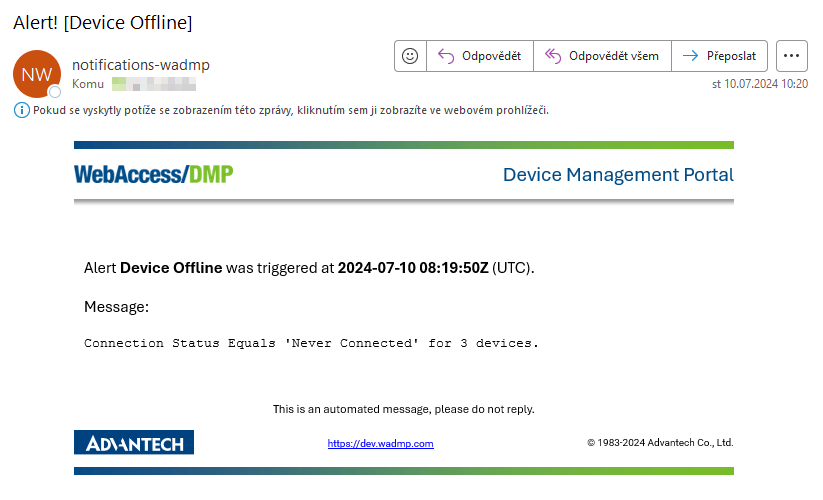
When an alert is sent to an email endpoint, the notification appears in the recipient’s inbox as shown below:
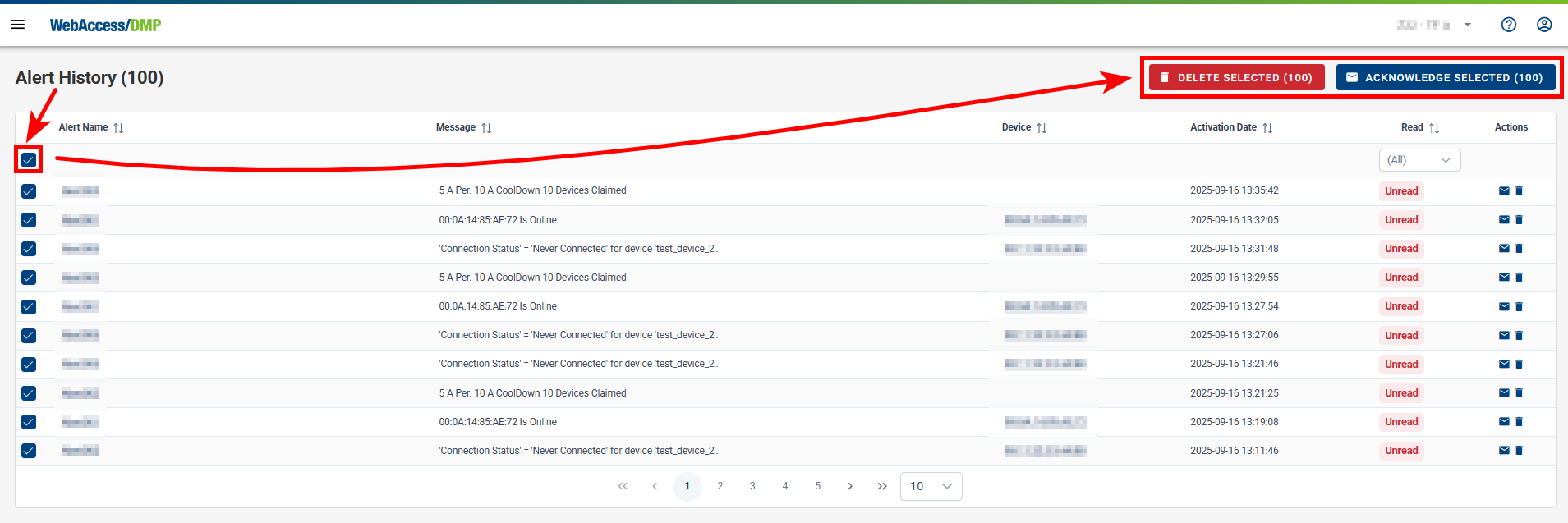
All triggered alerts are also recorded in Alerts → History, even if no endpoint is configured for the rule.
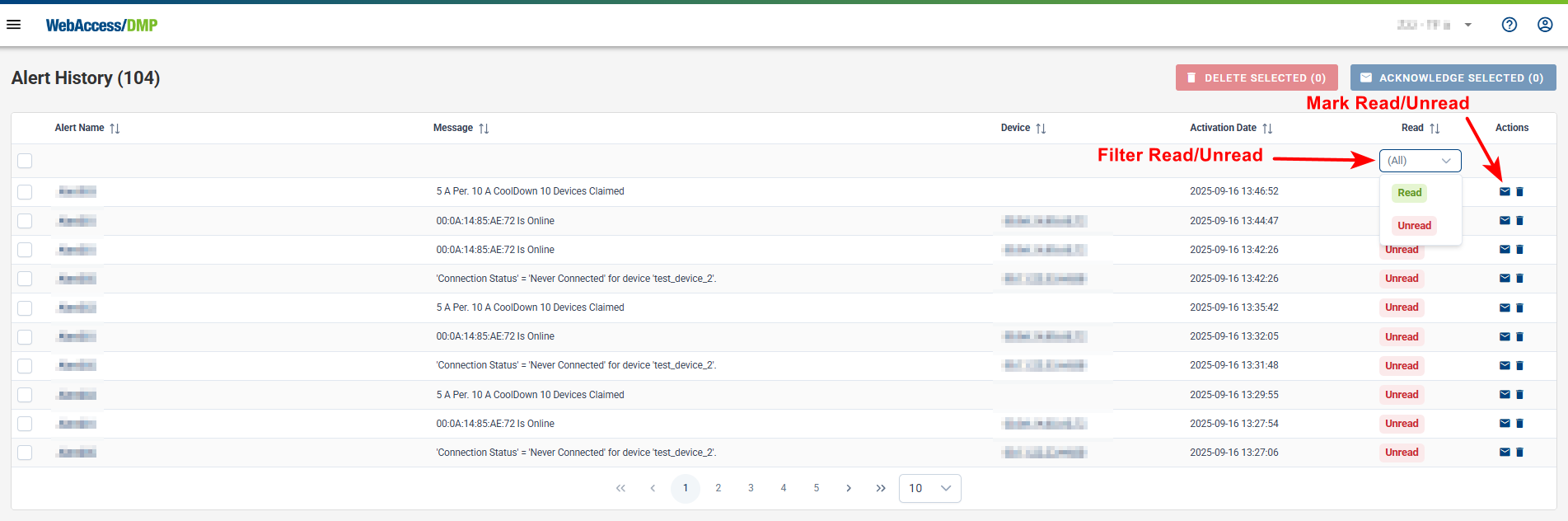
Alerts can be marked as Read or Unread using the envelope icon. Filters are available to display read or unread alerts only.
You can select individual alerts or select all alerts and then mark them as read or delete them in bulk.