
Appearance
Audit Logs
Every user action that creates, modifies, or deletes data generates an audit log entry. Audit logs are retained for a limited period and can be used for security reviews, troubleshooting, and compliance purposes.
Searching Audit Logs
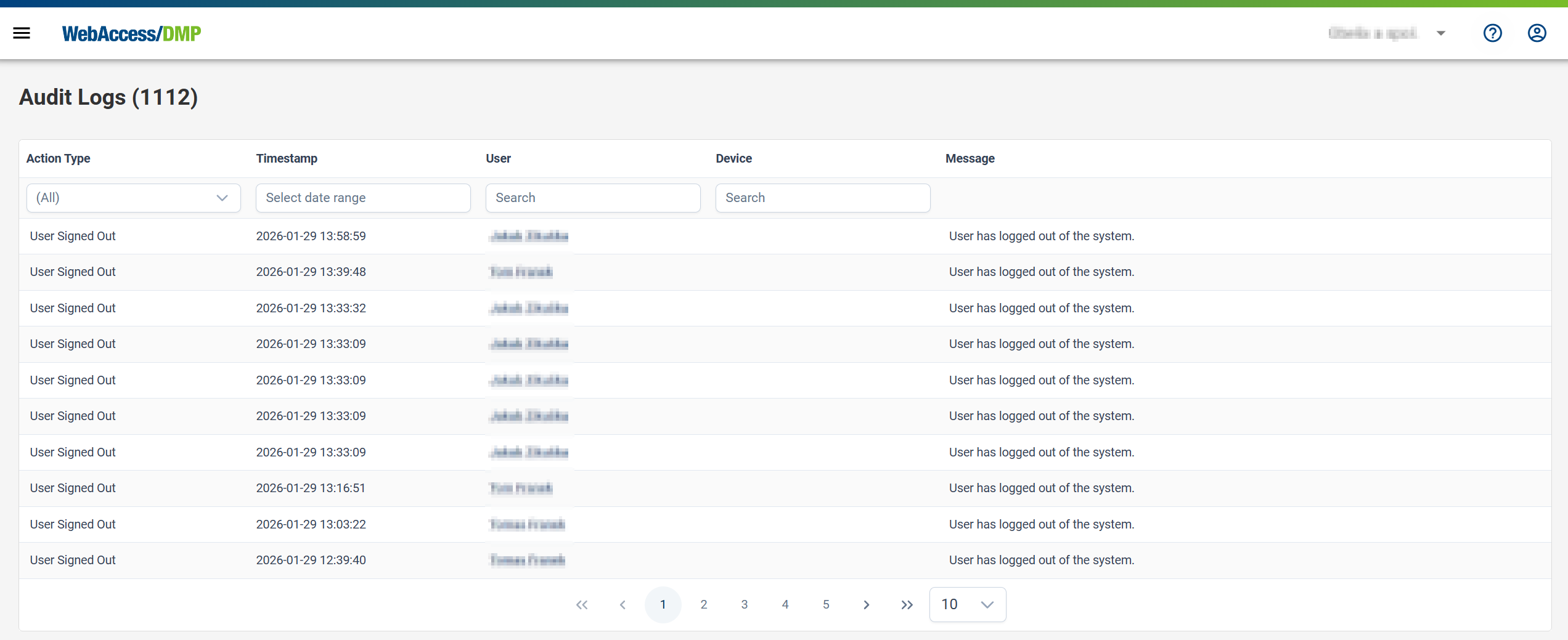
Accessing Global Audit Logs
Navigation: Select Audit Logs from the left navigation menu.
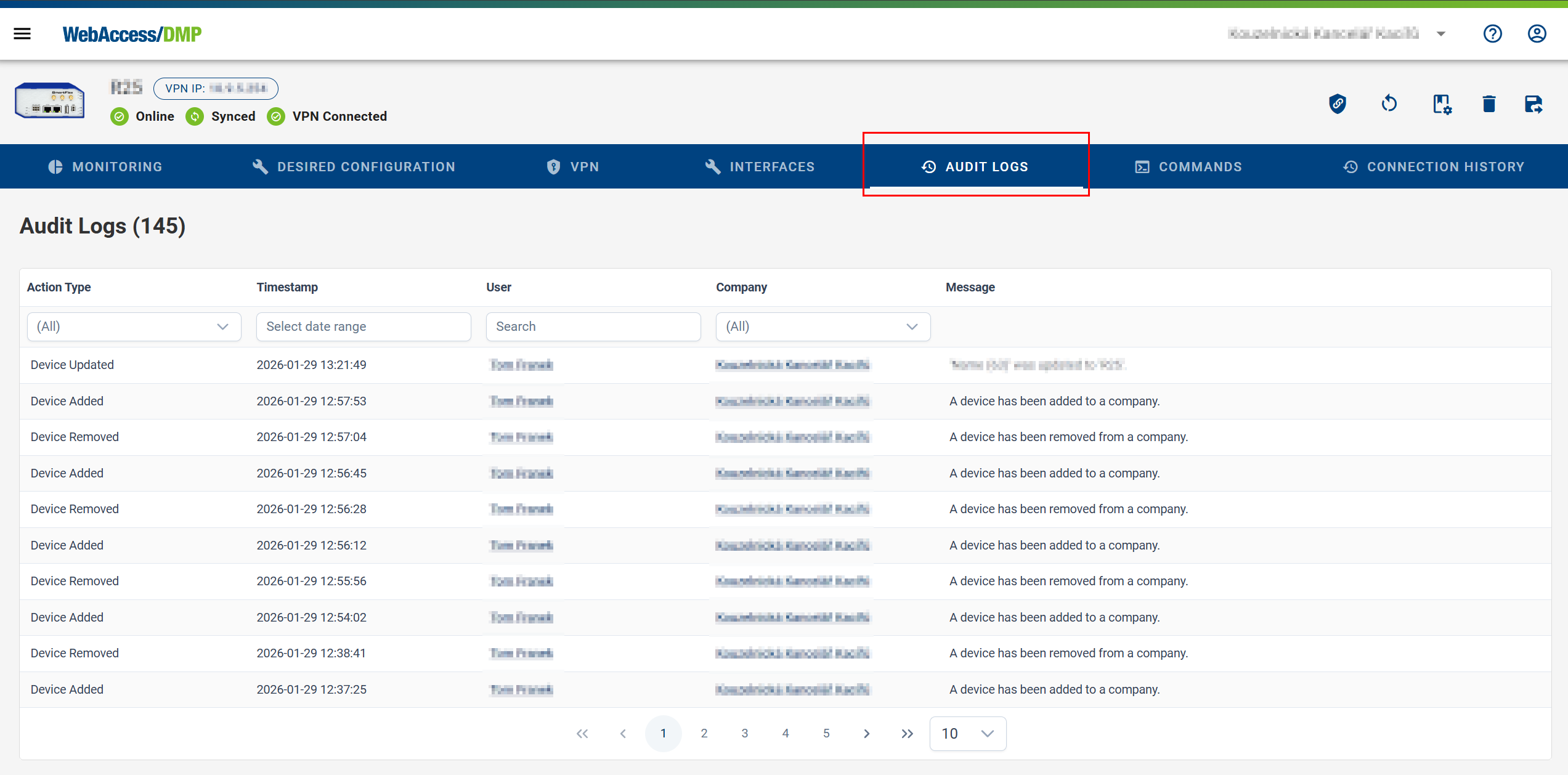
Accessing Device-Specific Audit Logs
Navigation: From the Dashboard, open a device detail page and select Audit Logs.
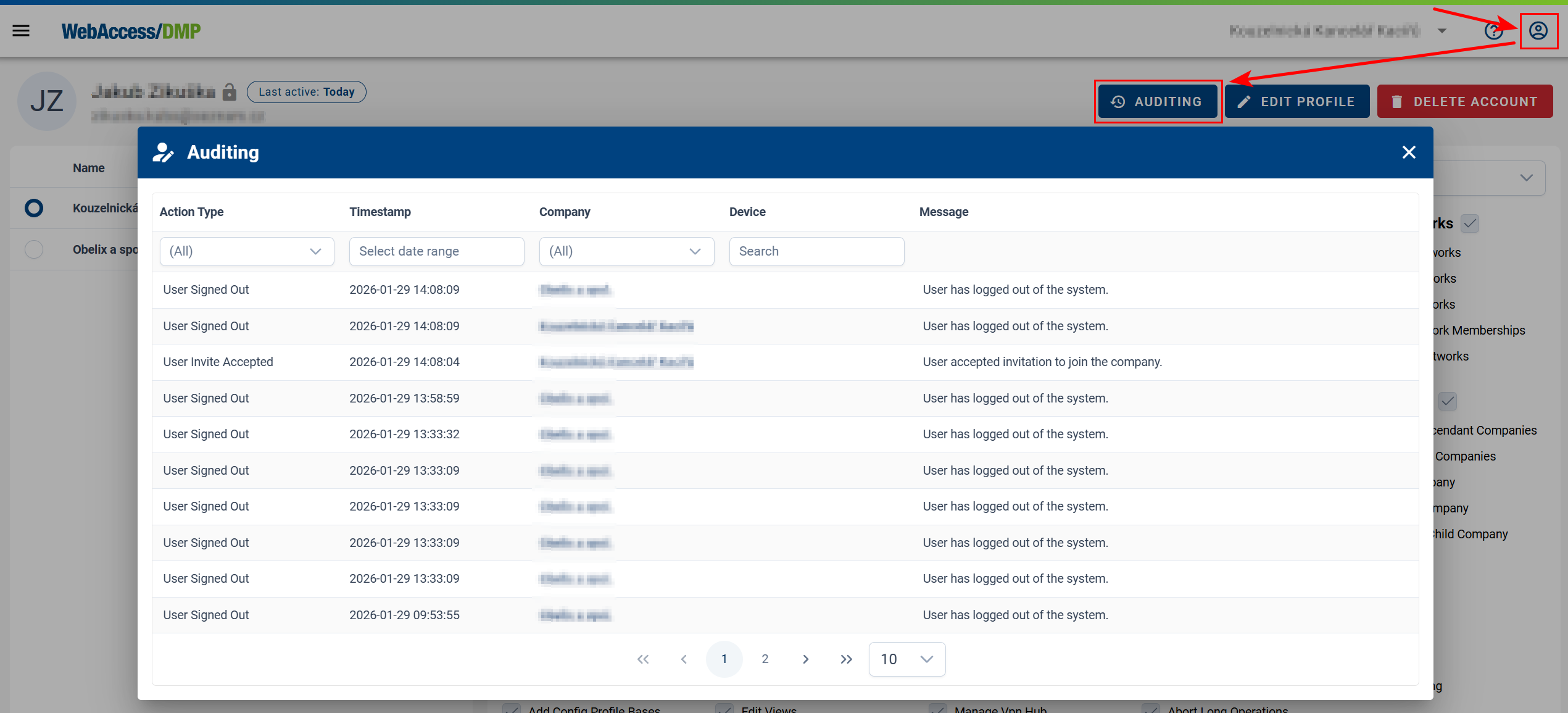
Accessing User-Specific Audit Logs
Navigation:
Open Users from the left navigation menu, select the user, click the Edit (pencil) icon to open the user profile, and then open the Auditing tab. You can access the same by opening your profile.
Filtering Audit Logs
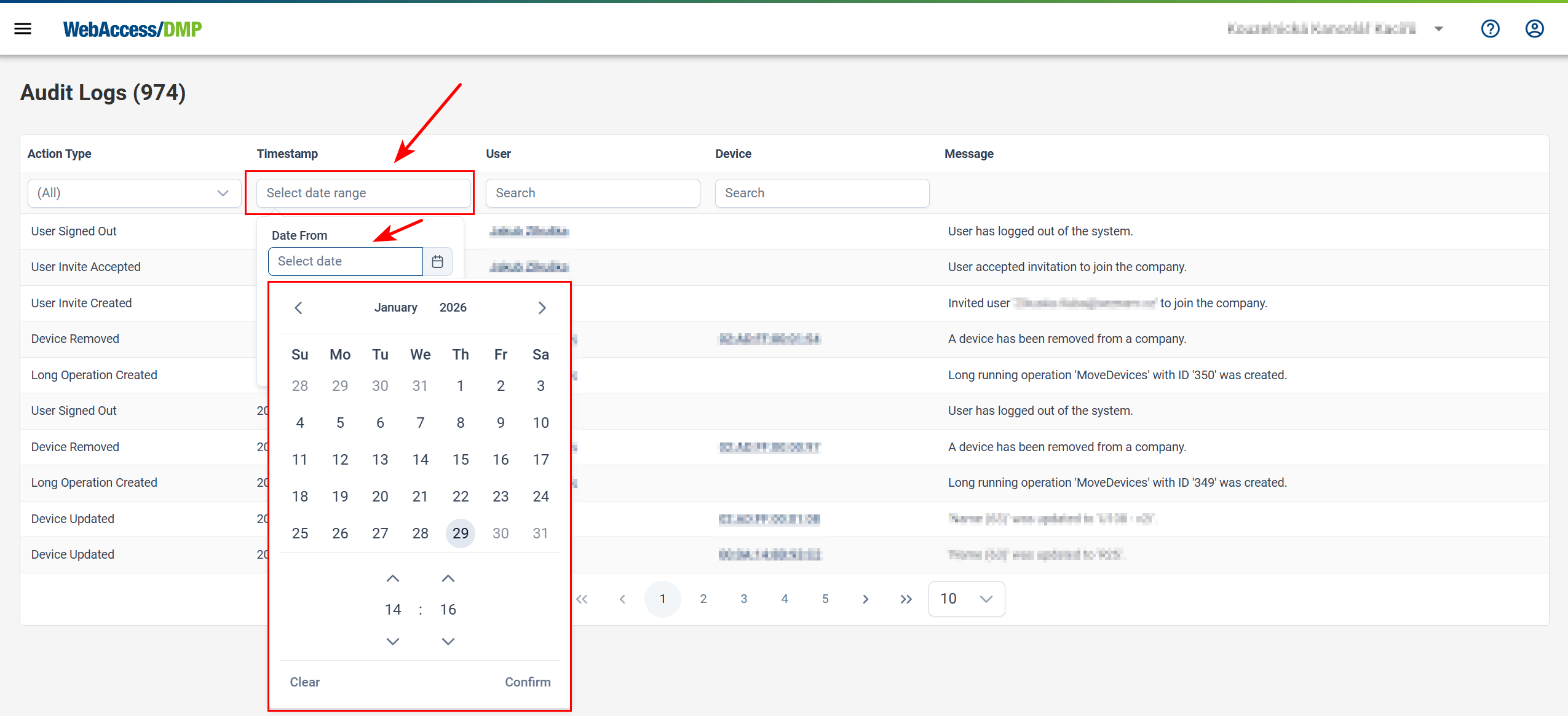
Time Range Filter:
Use the Start Time and End Time fields to limit the displayed audit records to a specific time range.
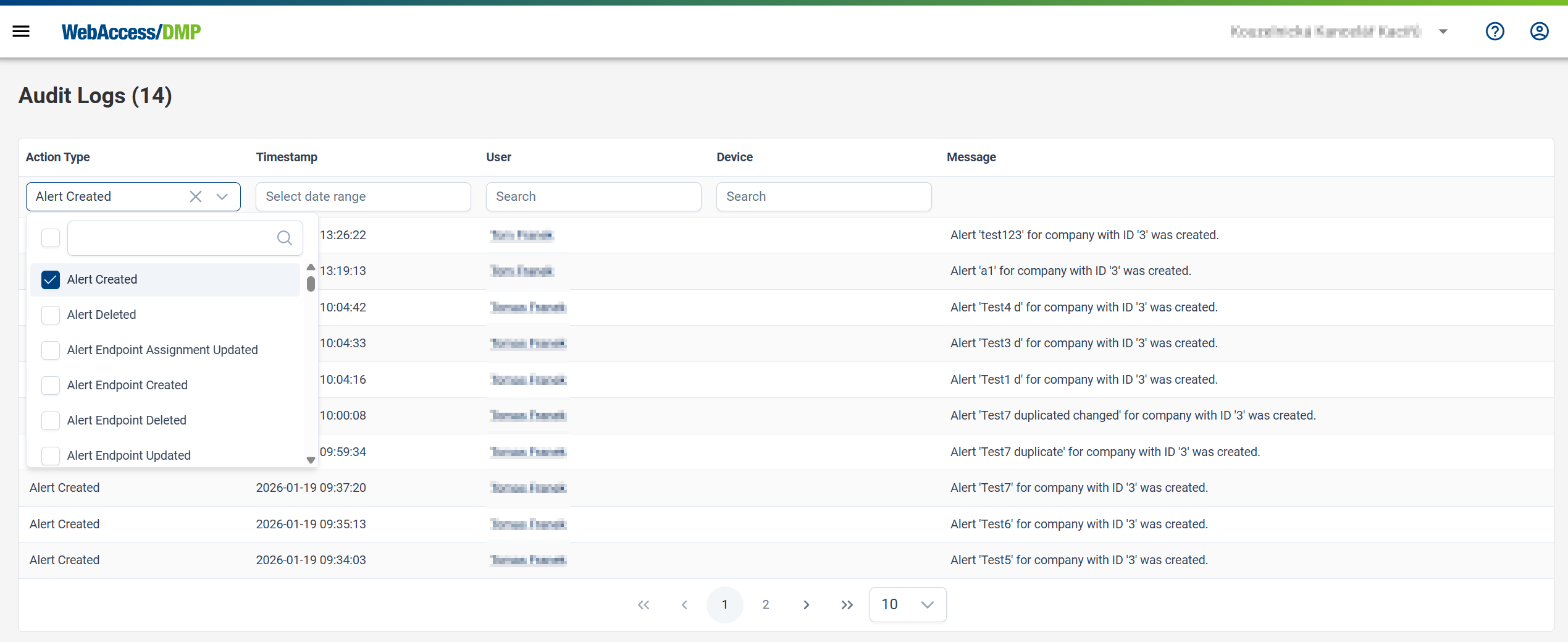
Action Type Filter:
Audit logs can also be filtered by the type of recorded action.
Audit Log Retention
Default View:
By default, the Audit Logs page displays records from the last 24 hours.Retention Policy:
Audit logs are retained on the DMP platform for two months. Records older than this retention period are automatically deleted.Viewing Older Records:
To view logs older than the default 24-hour window (but still within the retention period), adjust the time range using the time selection controls at the top of the Audit Logs page.