
Appearance
Customization of Views
The Company Dashboard (home page) allows you to create multiple views, while the Device Dashboard lets you customize views for individual devices in a similar way.
Structure of the Company Dashboard
The dashboard UI is divided into four main areas:
.Bn4N8j3k.png)
A: Title Panel
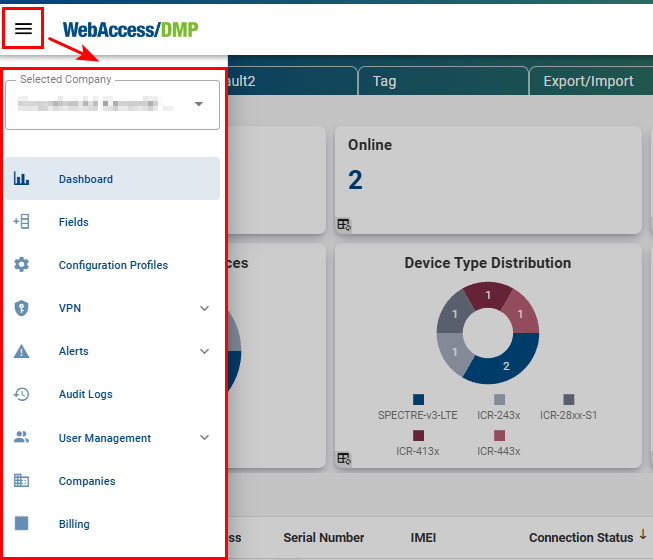
- The Title Panel contains a link to the Context Panel, where you can define what is displayed in Panel C.
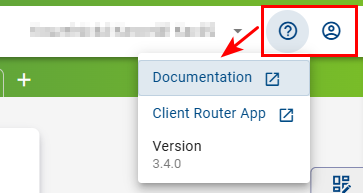
- It also provides access to:
- Documentation
- Client Router App
- Application version
- Information about the currently logged-in user
B: Views Panel
- This panel allows you to create new views or select existing ones, which define the layout and content of Panels C and D.
.DUfG-VV1.png)
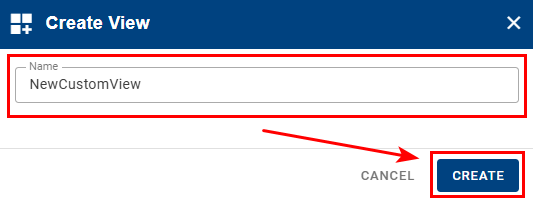
- To create a new view:
- Click the + icon.
- Enter a name for the view.
- Click Create.
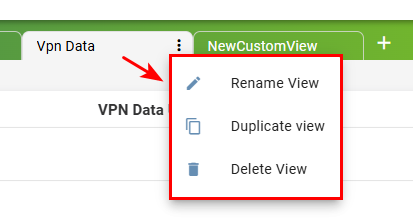
- To edit, duplicate, or delete a view, click the three-dots icon next to the view name.
C: Details Panel
This is the main content area of the dashboard. The information displayed here depends on the selected view and applied filters.
- You can access Edit View mode by clicking the icon at the top of the panel.
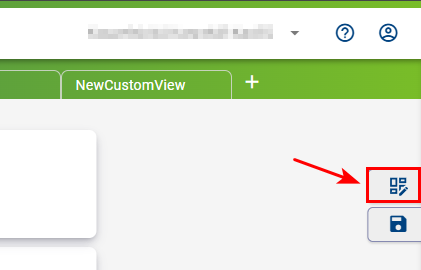
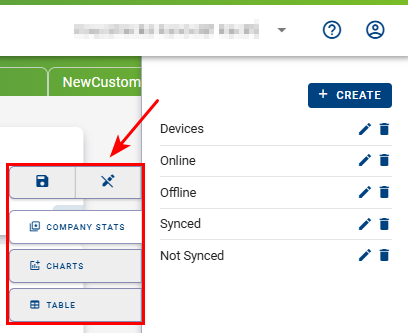
- In Edit View mode, you can:
- Add or remove widgets (Company Stats, Charts, Tables)
- Reorder and resize widgets
- Configure table columns
Click the Floppy Disk icon to save the current view.
D: Filter Panel
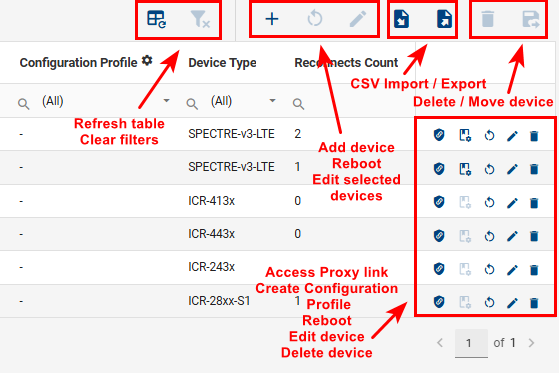
The Filter Panel allows you to:
- Filter devices by available parameters
- Import and Export data (CSV)
- Add or remove devices
- Reboot devices
- Create configuration profiles
- Move selected devices between companies
- Access Proxy link of the device
- Manage active filters
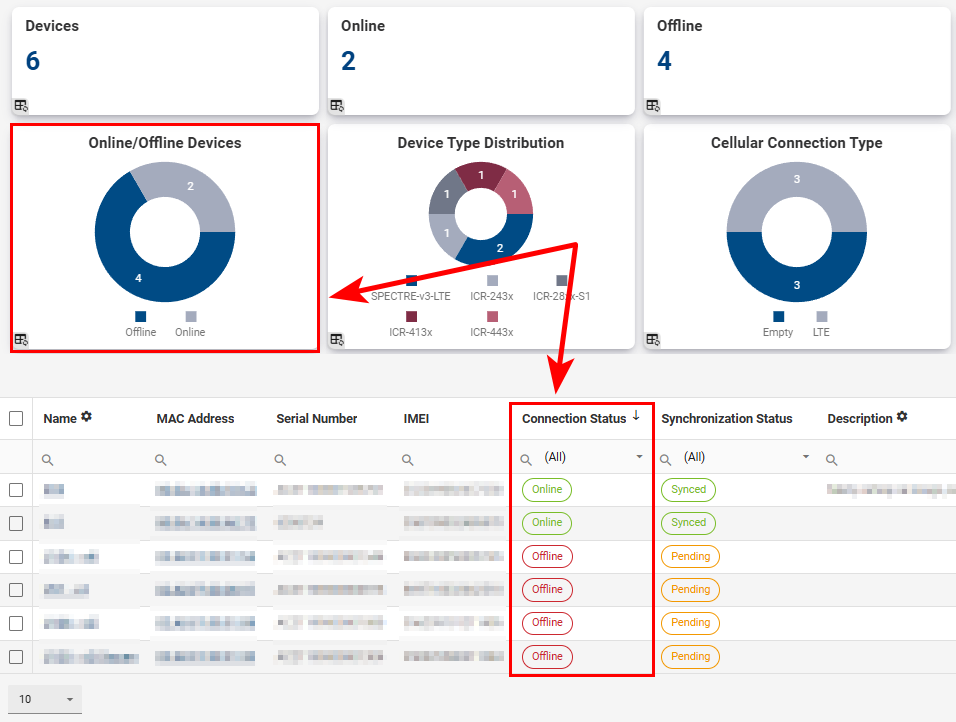
- When there are Online / Offline devices, aggregated company data is displayed:
For detailed descriptions of available fields, see Fields.
Searching and Filtering
You can search, filter, and sort devices freely. These actions apply only to the currently active view.
Searching for a Specific Device
- Select the column you want to search.
- Enter the desired value.
Example: Searching for devices containing “v2i” in the name column:

Sorting Devices
To sort devices by a column (for example, Description):
- Click the column header.
- Select ascending or descending order.

Filtering Using Widgets
- Widgets such as charts are interactive. Clicking on a chart segment applies a filter.

- Example: Clicking the Vodafone CZ segment filters the view to show only those devices.

- To remove all filters, click Clear Filters.
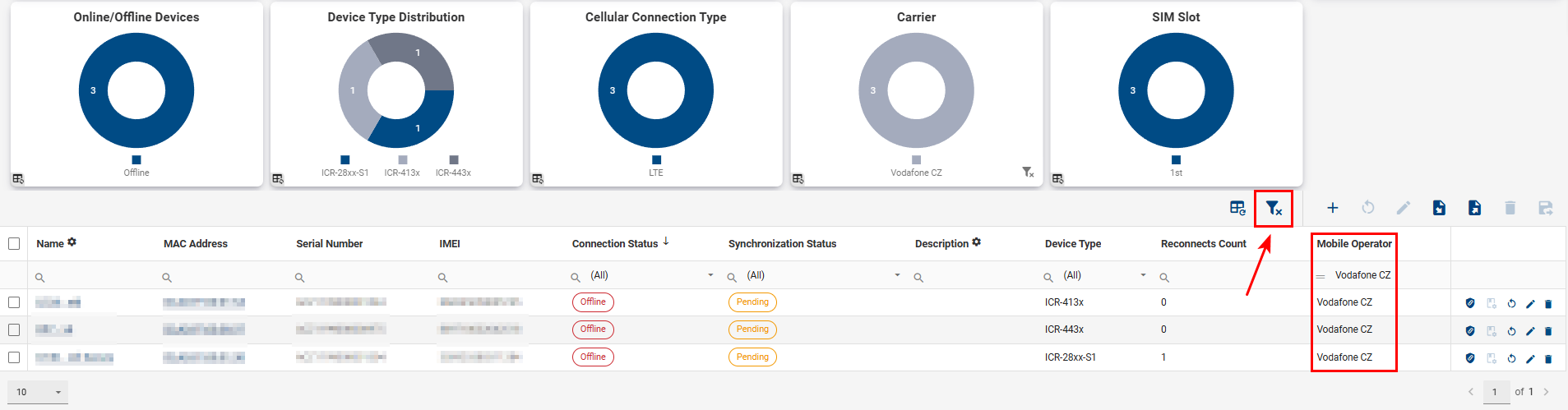
Customizing Table Columns
You can edit, show, hide, or add table columns using Edit View mode, as described in C: Details Panel.
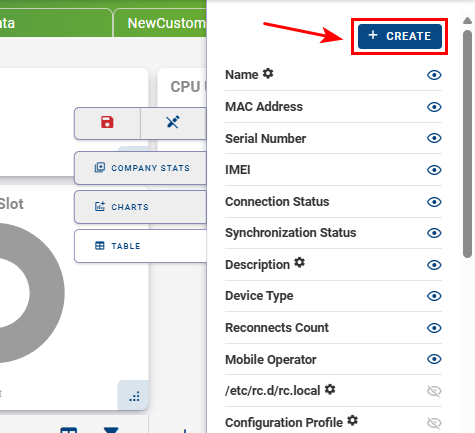
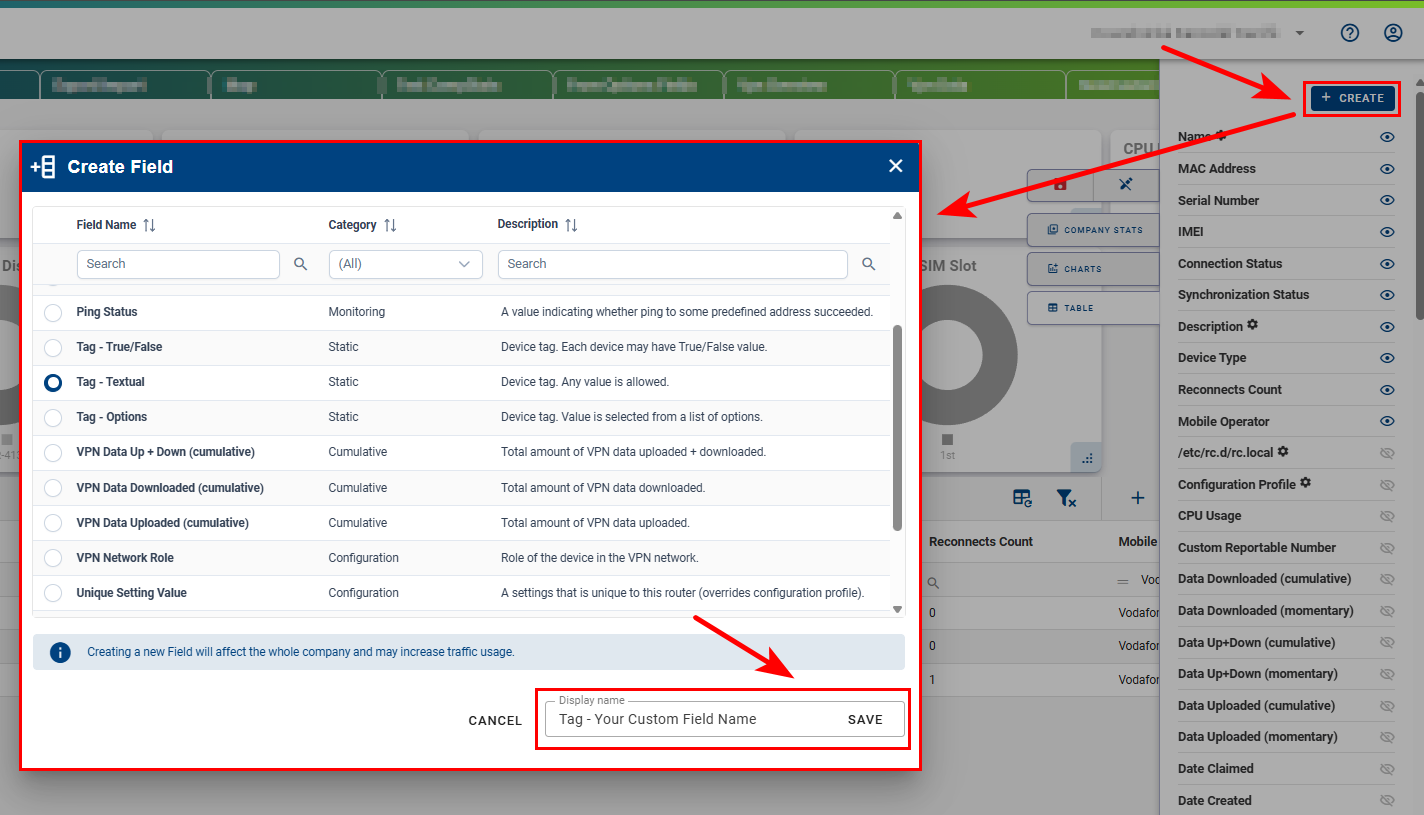
To add additional fields, click + CREATE.
Device Dashboard
To open a device dashboard, go to the Dashboard and select the device by clicking its name in the Filter Panel.
WARNING
Explanation: When viewing a device for the first time, the dashboard may be empty if no monitoring data is available yet.
- The example below shows the monitoring dashboard for an individual device, including charts, tables, and key status indicators.
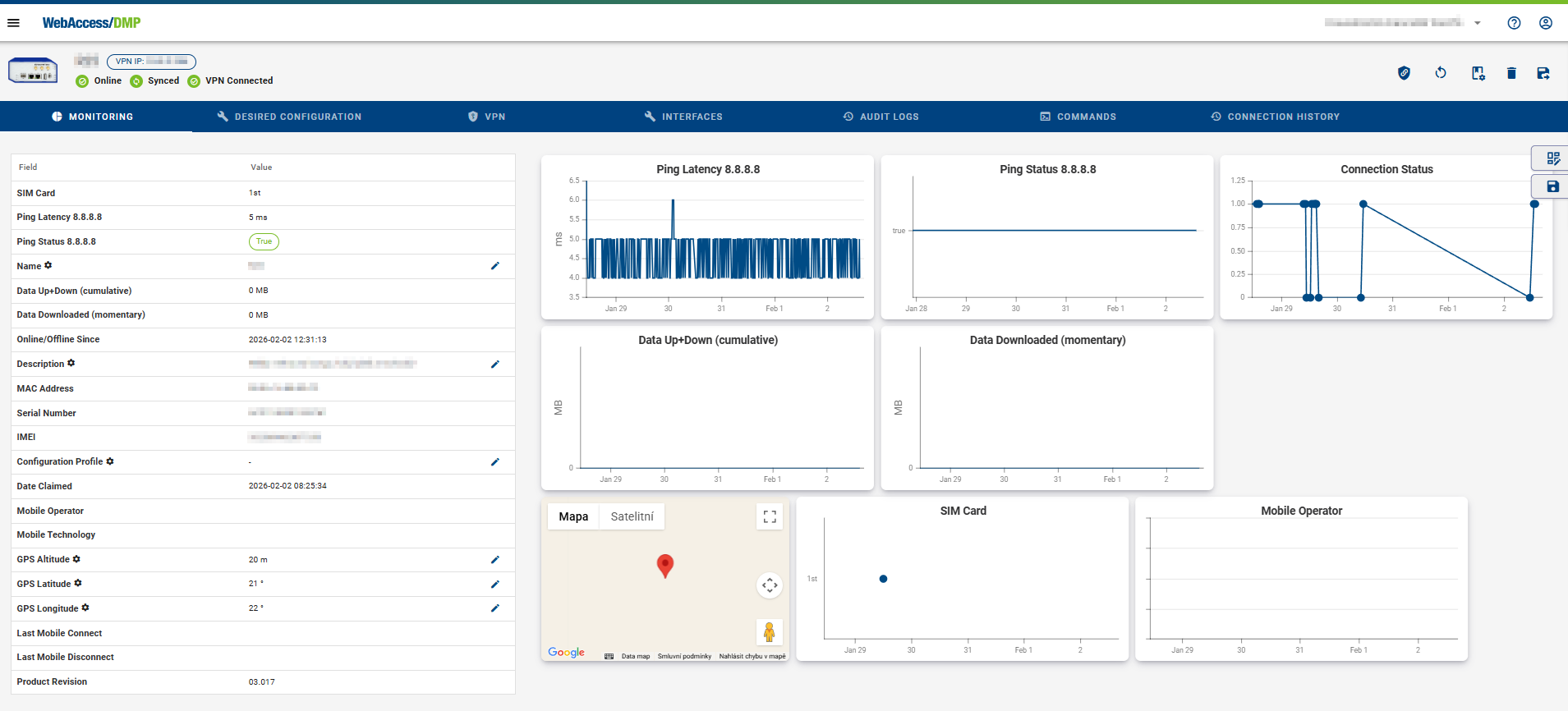
- To customize the device dashboard, click Edit View.
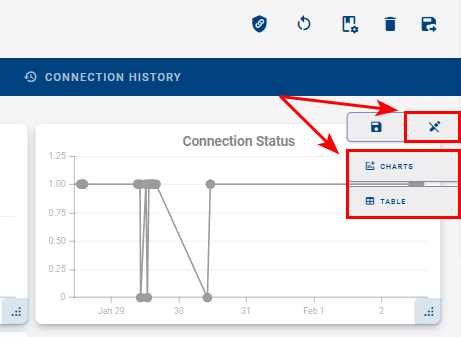
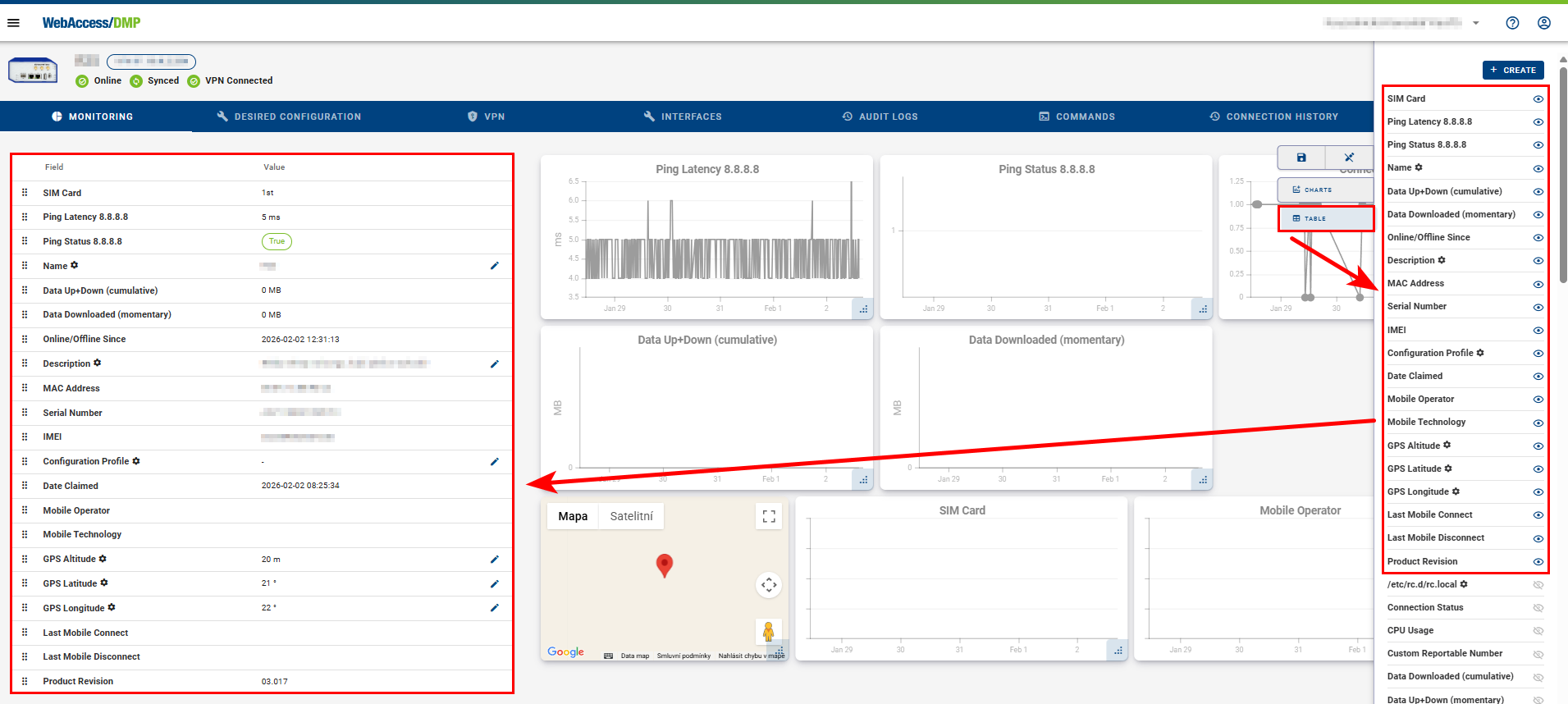
- To add tables:
- Open Edit View
- Enable Table
- Add fields using + CREATE
- To add charts:
- Open Edit View → Charts
- Select Line Chart or Map (Map requires GPS support)
- Choose the desired field
- Save the view
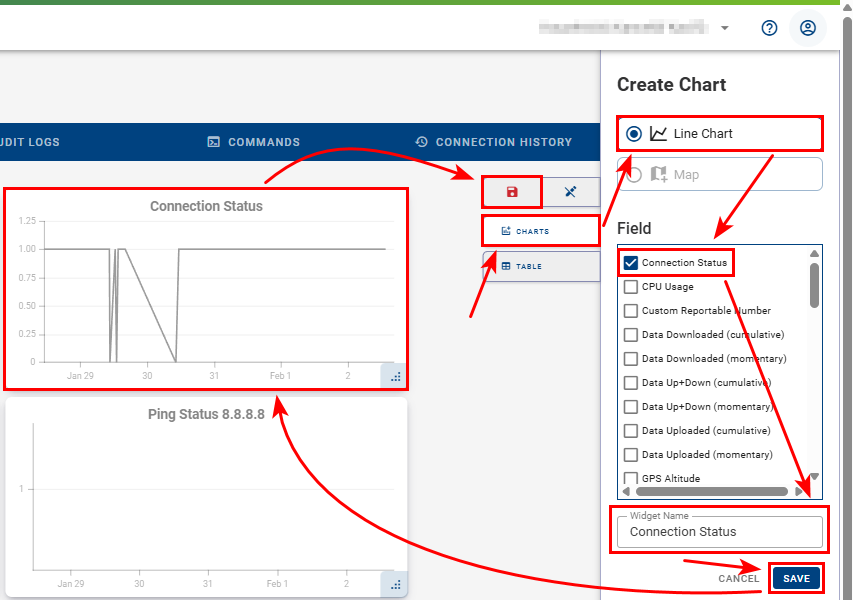
Note:
Any changes made in Edit View mode must be saved using the Floppy Disk icon.