
Appearance
Tips & Tricks
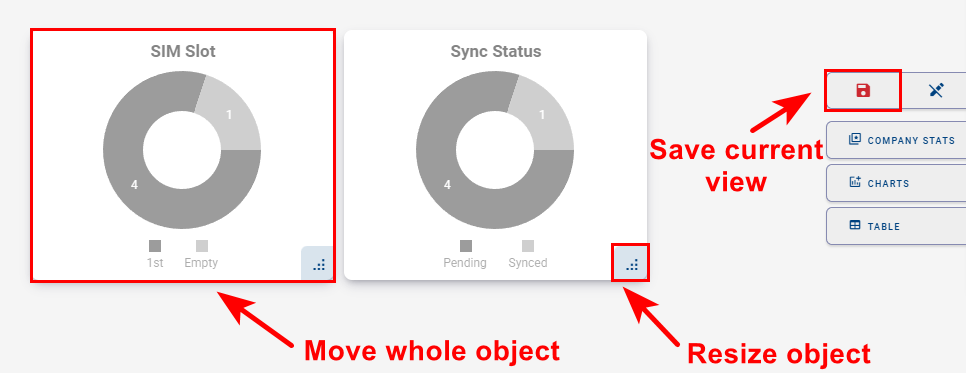
Resizing and Moving Widgets
This functionality applies to both Company and Device dashboards.
To adjust the size or position of widgets:
- Switch to Edit View mode.
- Drag a widget to resize it or move it to a new position.
To exit Edit View mode:
- Click the Floppy Disk icon to save your changes, or
- Click the Undo button to discard them.
Editing or Adding a Device Description
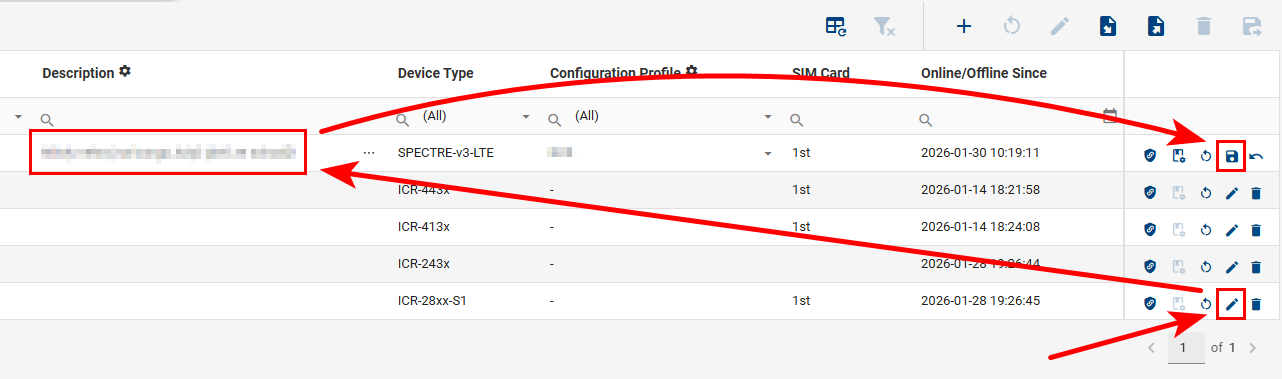
To edit or add a description for a device:
- Click the Edit icon on the device you want to modify.
- Enter the desired description.
- Save the changes by clicking the Floppy Disk icon that replaces the Edit icon.
Device Tagging
Tags allow you to organize, filter, and group devices. Using tags, you can create overlapping groups of devices and quickly filter or search for them.
After logging in to the system, ensure that the Tag – Text field is available in the device filter panel.

If the field is not available, you can add it by following Adding / Removing Fields.
Creating Tags
- Make the Tag – Text field visible.
- Select the devices you want to tag.
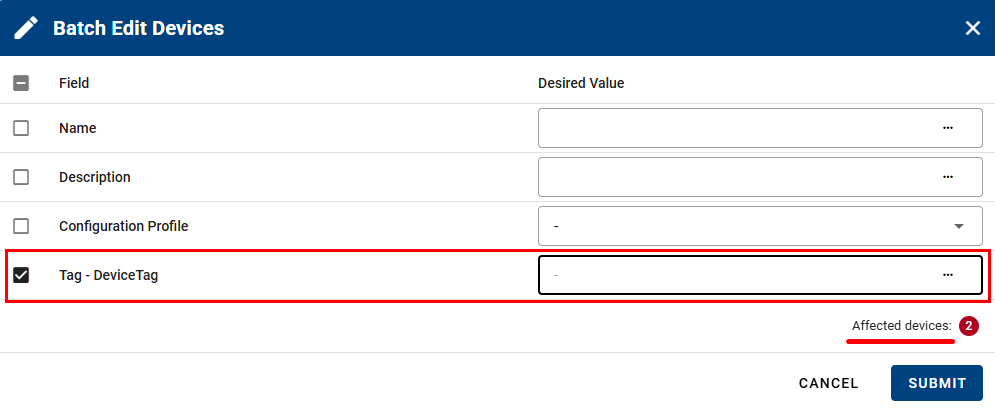
- Click the Batch Edit Filtered Devices icon.

- In the Batch Edit Filtered Devices dialog:
- Enter the desired tag value in the Tag – Text (Desired Value) field.
- Review the number of affected devices shown above the Submit button.
- Click Submit to apply the tag.
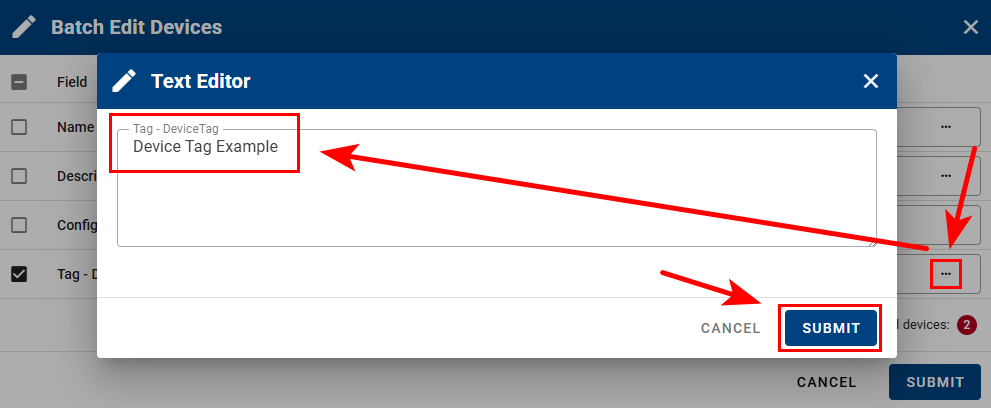
- The selected devices are now tagged.

Filtering by Tag
To filter devices by tag, type the tag value into the filter field. Only devices with the specified tag will be displayed.

Data Export
You can export device data to CSV files for use in Excel or other tools:
- Export All Devices
Export data for all devices without selecting any rows. - Export Selected Devices
Select specific devices and export only their data. You can also select devices directly from a chart and export their data in bulk.

For more details, see Exporting Data to CSV.
Data Import
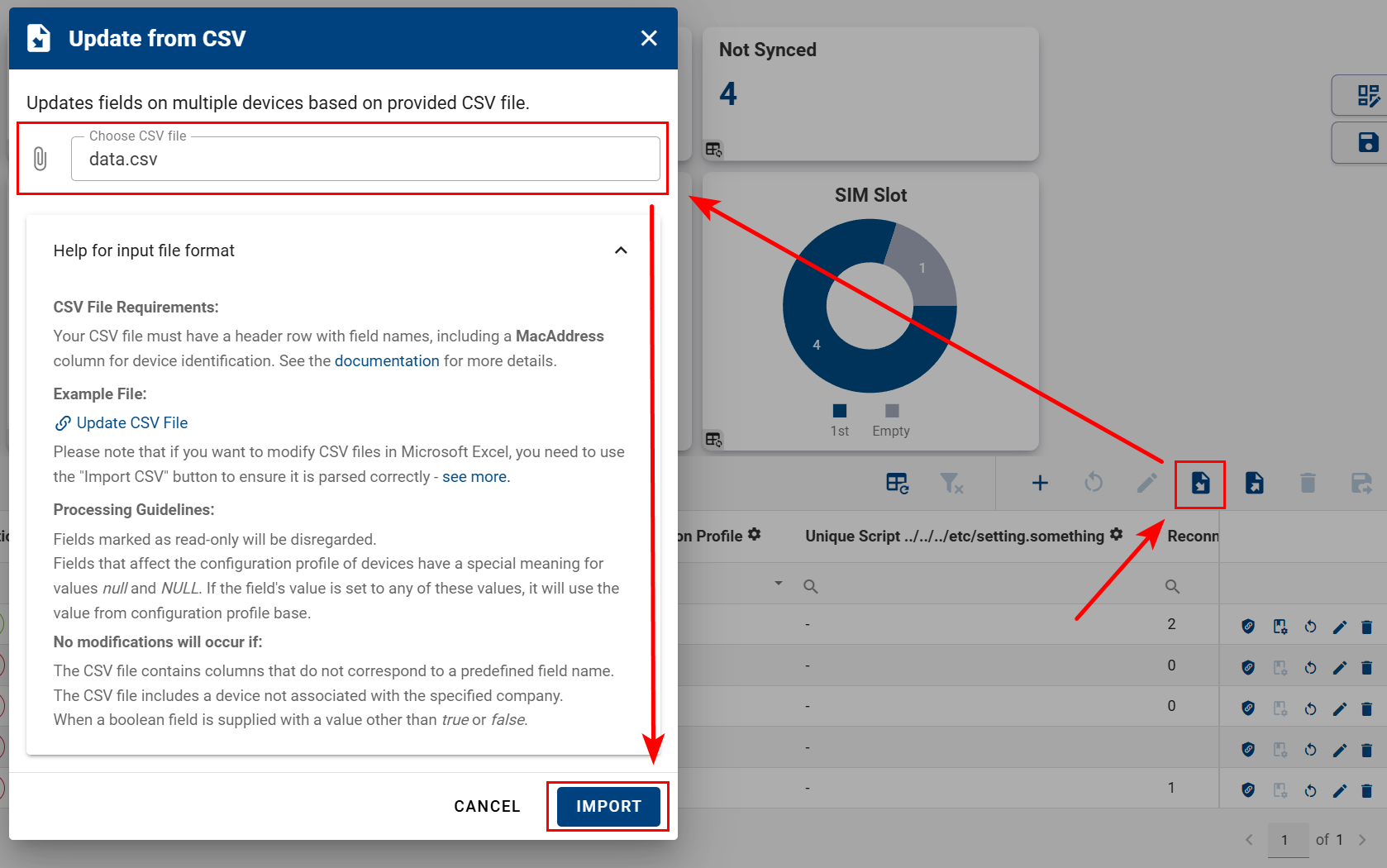
You can import configuration and data for devices from CSV files:
- Click the CSV Import button.
- Select the CSV file to upload.
- Review the Help for input format section for file requirements.
- Click Submit to complete the import.
For more information, see Device Configuration.