
Appearance
Add Users
Creating users is the primary way to add them to your companies. The process differs depending on whether the invited person is a new user or an existing user.
- New User:
Receives a registration link by email. After completing the registration, their account is created and they are automatically added to your company.
Preconditions
- You must be signed in to the platform.
- You must have permission to create users. You can verify this by opening your profile and checking the assigned permissions.
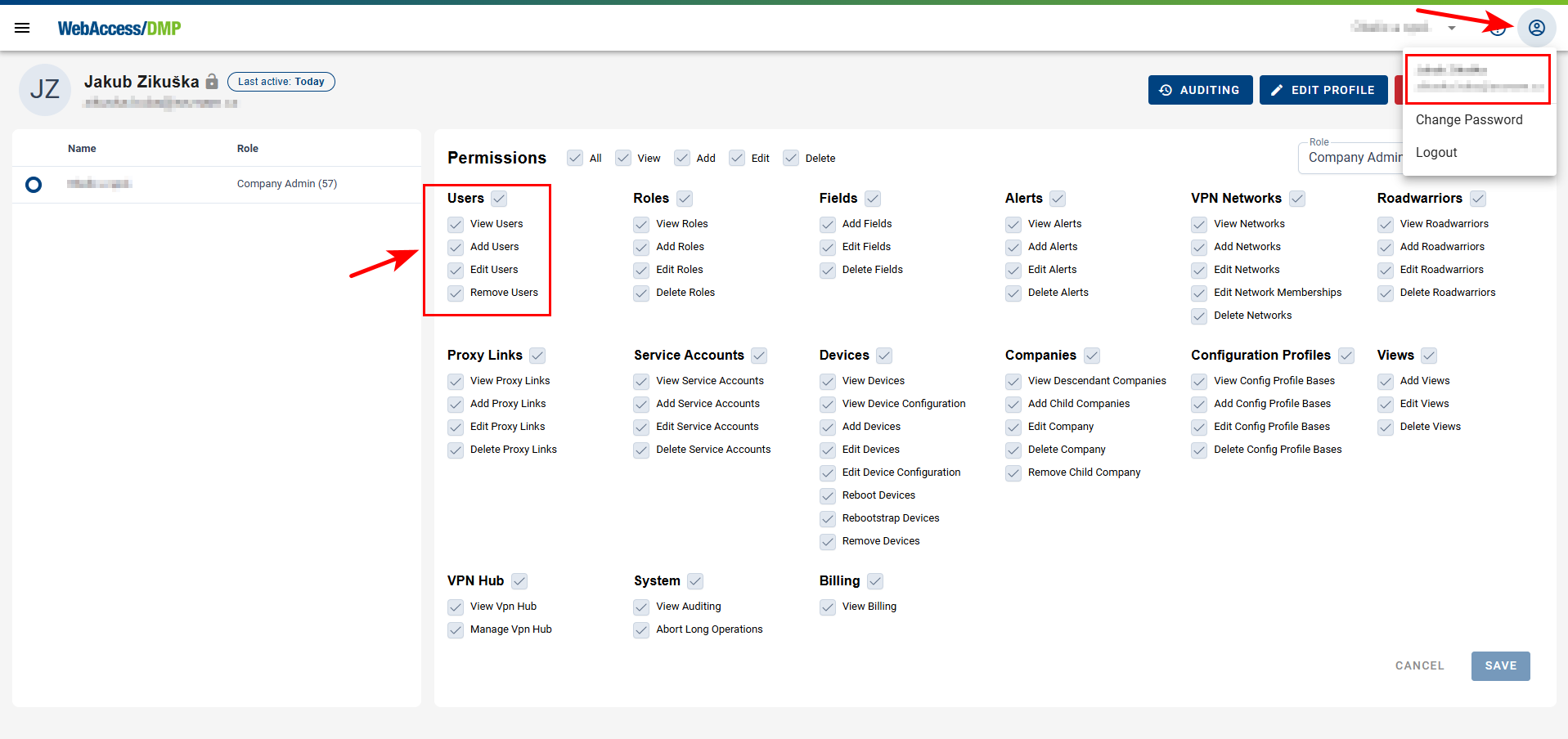
Steps to Create a New User
Select the Company Context:
Navigate to User Management from the side menu in the context of the company to which you want to add the user.Initiate User Invitation:
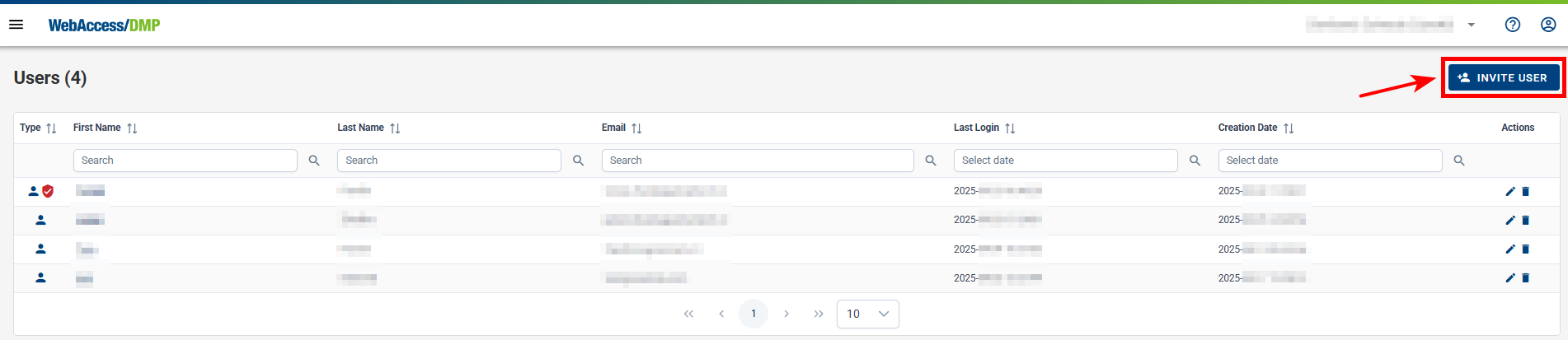
Click the Invite User button located at the top right of the Users or Companies page.
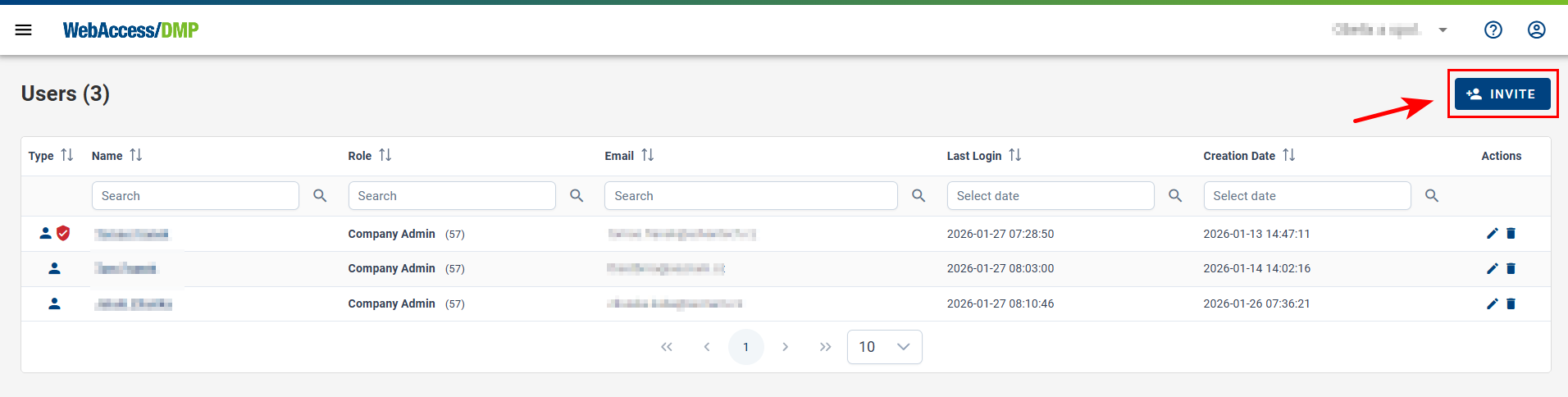
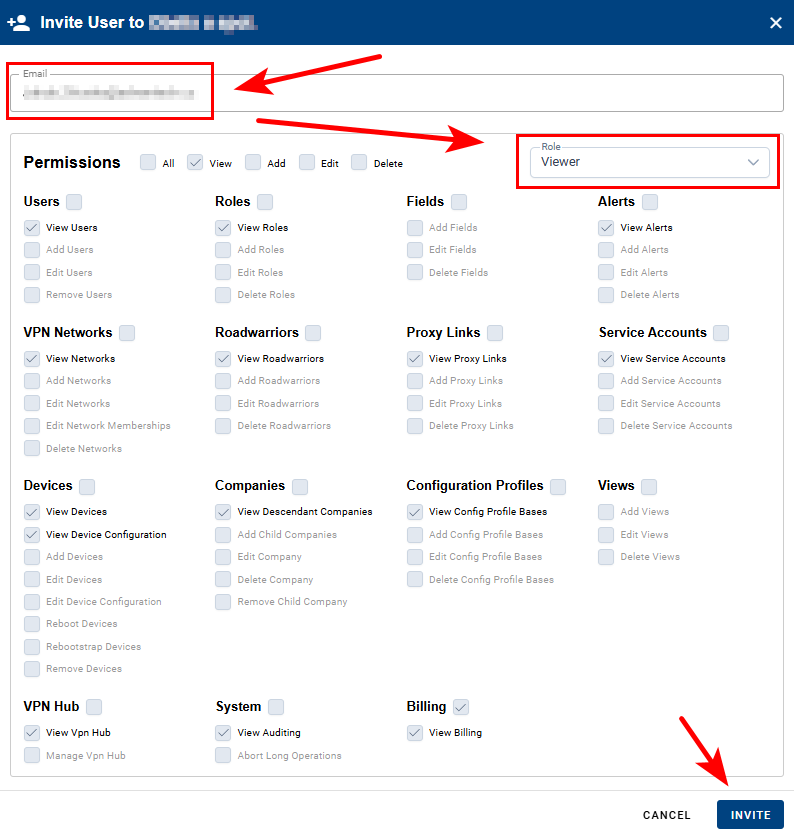
- Fill Out the Invitation Form:
Assign a role that defines the user’s permissions, or create a custom role with the required permission set. For details, see the Permissions & Roles section.
- Invited User Status:
Invited users appear in the user list in a lighter (gray) color. You can resend the invitation using the blue arrow button, view details, or delete the invitation.

- Email Confirmation:
The invitee receives an email containing a confirmation link. They must click the link to continue.

- Account Registration:
The link opens the registration page. The email address is pre-filled and cannot be changed. The user completes the remaining fields and clicks Create Account.

- Registration Completed:
After successful registration, a confirmation message is displayed. The user can access the system via the Dashboard link or by signing in on the main page.

Invite Existing Users
You can also invite users who already have an account to additional companies, provided you have the required permissions.
Your assigned permissions are visible when editing your user profile and are indicated by check marks.
Steps to Invite an Existing User
Navigate to Users:
Open the Users section in the context of the company to which you want to add the user.Initiate Invitation: Click on the Invite User button located at the top right of the Users page.
Fill Out Invitation Form: When inviting a user, you must assign a role that defines their permissions, or create a custom role with the required permission set. For details, see the Permissions & Roles section.
- Send and Confirm Invitation: The user will receive an email invitation. They must click the link in the email to proceed with account setup.

- Complete Account Setup: The user follows the link to the main page, fills in their login details, and clicks Create Account. The email used is pre-filled and cannot be changed.