
Appearance
VPN Service Introduction
The VPN Service in WebAccess/DMP is a secure networking feature that enables remote access to industrial routers, IoT gateways, and local networks. It simplifies VPN deployment through centralized management and uses WireGuard for secure, high-performance communication.
Key Features
- Access devices from anywhere in the world
- Easily reach router management interfaces
- Securely access local networks behind routers
- Group devices into VPN networks
Setting Up VPN
1. Initialize the VPN Hub
To start using VPN:
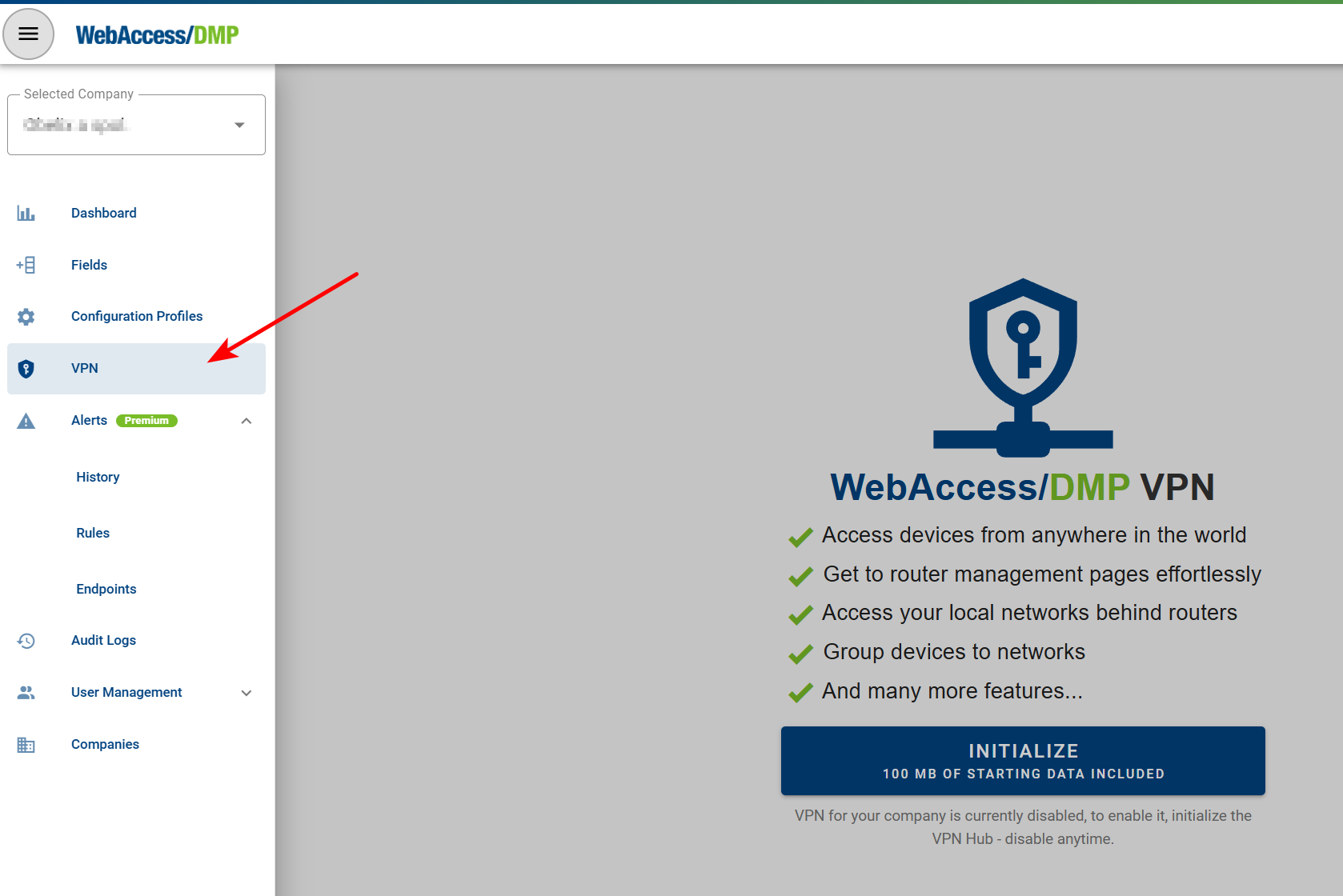
- Navigate to the VPN section in the menu.
- Click INITIALIZE to activate a 30-day free trial, which includes 100 MB of VPN data for your company.
If you do not upgrade to a Premium plan, the VPN service will be disabled after the trial period.
2. Configure the VPN
During initialization, you must select the VPN Hub region and configure the VPN network:
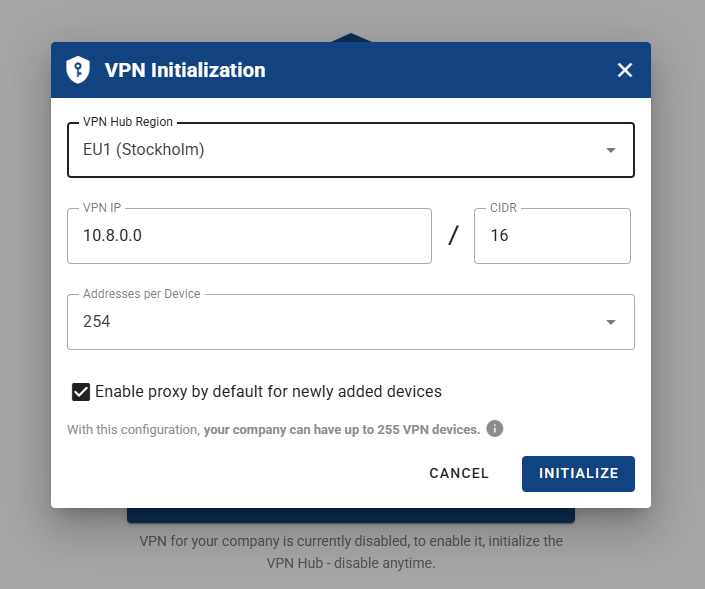
VPN Hub Region
All VPN traffic for your company is routed through a VPN Hub running in the selected region. The hub is a dedicated virtual machine for your company.VPN IP and CIDR
Defines the VPN network range. The CIDR value affects the maximum number of VPN-connected devices (together with Addresses per Device). The calculated limit is shown dynamically at the bottom of the form.Addresses per Device
Specifies how many VPN IP addresses a single device can use. This also affects the maximum number of VPN devices. This value can be adjusted later on a per-device basis.Enable proxy by default for newly added devices
Determines whether newly added devices have the VPN proxy link enabled by default. This setting can be changed individually per device later.
All values can be modified later on the VPN Overview page.
WARNING
Important: Once VPN is initialized, the maximum number of VPN devices (based on CIDR and Addresses per Device) also defines the maximum number of devices that can be added to the company.
3. Complete the Initialization
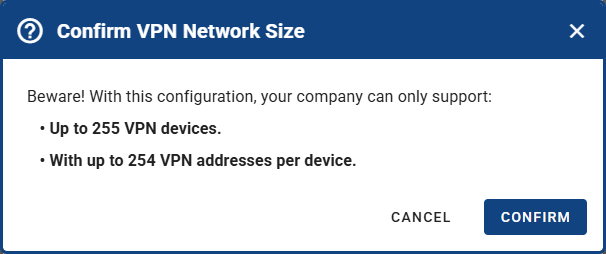
After completing the configuration, click Initialize. A confirmation dialog showing the maximum number of devices will appear. Confirm to start the VPN Hub.
WARNING
Important: To connect a device to VPN, the WebAccess/DMP Client Router App version 3.2.0 or later must be installed.
VPN FAQs
Does starting a VPN Hub cost anything? How do I purchase VPN data?
Starting a VPN Hub is free. Both Free and Premium companies receive 100 MB of free VPN data during the trial period.
After the free data is consumed, Premium companies can purchase additional VPN data from the VPN Overview page. Purchased data is billed to the parent company.
The price of 1 GB of VPN data is equivalent to the price per device.
For example, if the device fee is 2 EUR, then 1 GB of VPN data also costs 2 EUR.
For billing details, see Billing and refer to the VPN Billing Summary section.
How and when is VPN data billed?
VPN data is billed to the parent company in the month it is purchased and remains available until fully consumed.
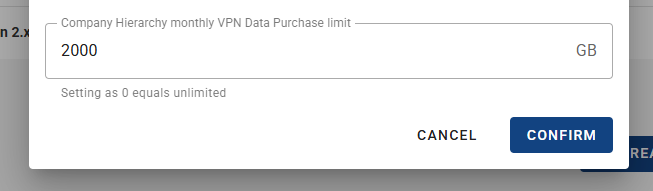
If a sub-company purchases data, the parent company is responsible for payment. To prevent accidental over-purchasing, you can define a monthly VPN data purchase limit at the parent company level (default: 2000 GB).
Navigate to Companies → select parent company → Edit Company Profile, and configure the Company Hierarchy monthly VPN Data Purchase limit.
What features are available for free?
During the free trial:
- All VPN features are available
- Data is limited to 100 MB
- Trial duration is 30 days
- Maximum of 5 devices (including Roadwarriors)
There are no speed limitations.
After the trial, you can upgrade to Premium to purchase additional data and add more devices.
How do I connect a device to VPN?
With the VPN Hub running, ensure the device has WebAccess/DMP Client Router App version 3.2.0 or later installed.
The device connects to VPN automatically. You can verify the connection status:
- On the device page header
- In the VPN Network view
- Using the VPN Connected Field on the Dashboard